Switch to SendPulse from other WhatsApp providers
If your phone number runs on the WhatsApp Business Platform with another provider, you can migrate it to SendPulse and keep the phone number. You don't need to delete it from your current WhatsApp Business account.
For example, an online store can move the phone number it uses for order updates to SendPulse. Customers who saved this number keep messaging it, and the store automates replies with a chatbot.
Let's talk about how to check the migration requirements and migrate your phone number.
Check the migration requirements
Before you start, make sure your phone number and Meta accounts meet the following requirements:
- Two-step verification is turned off for the phone number with your current provider.
- Your Meta Business Portfolio is verified.
- Your current WhatsApp Business account is approved and has a payment method.
- The phone number's display name is approved, and there are no pending requests to change it.
- The phone number isn't a Meta test number with the +1 country code and the 555 area code.
Read more: Get your phone number ready for connection and Verify a business in Facebook Business Manager.
Migrate your phone number
To start the migration, open the WhatsApp connection page in SendPulse.
Go to the Chatbots section. If you haven't connected any messaging channels yet, click Connect. If you already have connected chatbots, go to Manage bots and click Connect next to WhatsApp.
In the WhatsApp section, SendPulse reminds you to turn off two-step verification with your current provider first. Accept the terms of use and click Continue with Facebook.
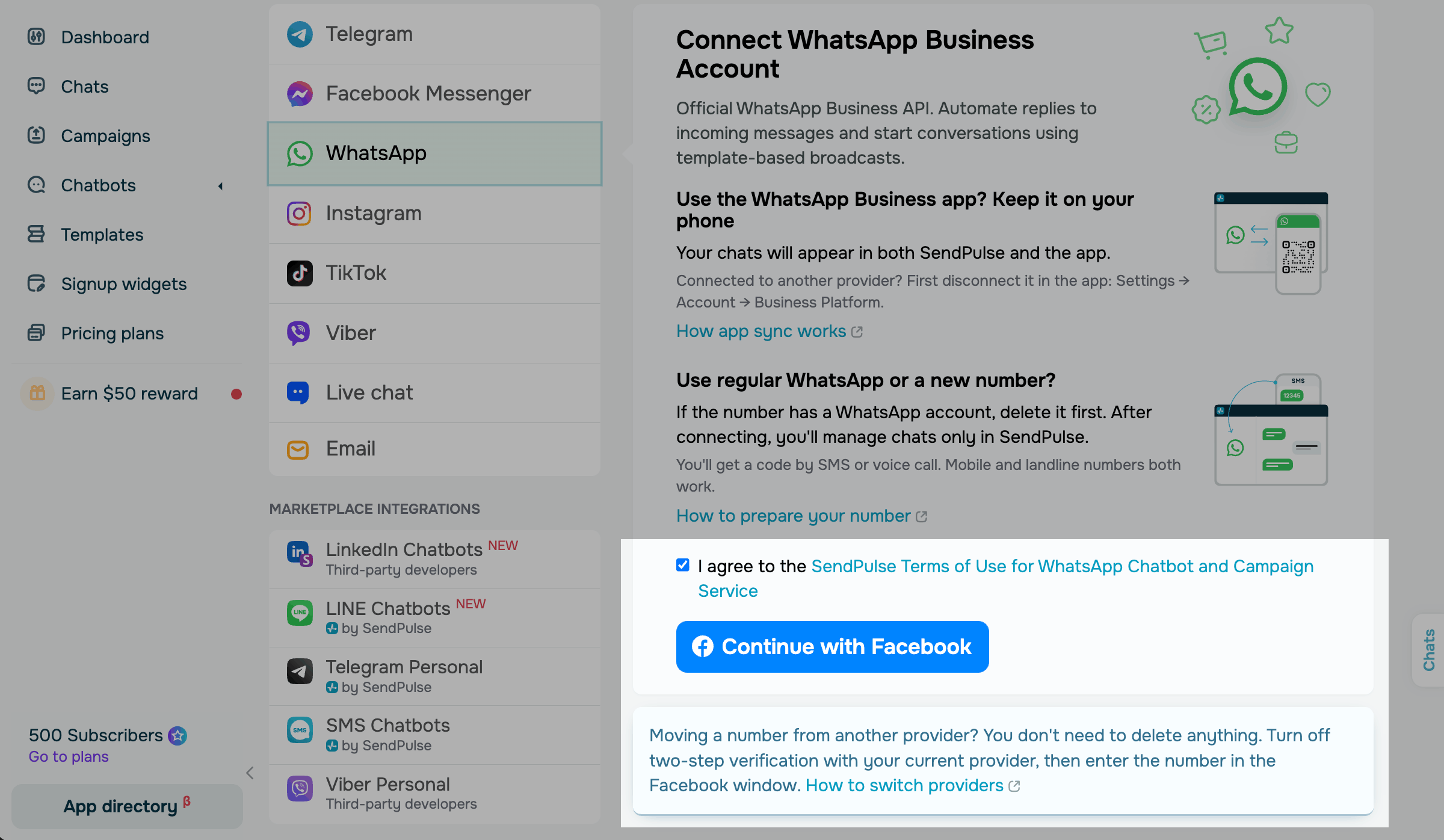
In the Facebook window, enter your existing phone number and its display name. Then, follow the steps in the connection wizard.
Once you complete the wizard, SendPulse registers the phone number and creates your chatbot.
The phone number keeps its quality rating.
If Local storage is turned on for your phone number, Meta keeps its message data in a selected region. SendPulse registers the migrated phone number in the same region automatically, so you don't need to specify it.
If an error occurs during the migration, find a solution in Troubleshoot WhatsApp connection errors.
Read more: Create a WhatsApp chatbot with a new phone number.
Check your chatbot
You can use your message templates once the migration is complete.
SendPulse pays Meta for your messages through its credit line, a payment method linked to your Meta Business Portfolio. To check that the credit line works, send a paid template message, such as a marketing one.
Your Meta Business Portfolio may stay linked to the credit line of your previous provider instead. This usually happens if you've sent paid messages through that provider in the current or previous month.
If the template message isn't sent, check your payment method as described in Troubleshoot WhatsApp payment issues. If that doesn't help, ask your previous provider to revoke its credit line.
Read more: Add a template for WhatsApp campaigns.
Once your chatbot is ready, you can create an automated flow and send a WhatsApp campaign. You can also import your WhatsApp subscribers.
 Last Updated: 23.10.2026





or