Set up gamification for your courses
Gamification turns learning activities into opportunities to earn points, unlock achievements, and compete with other students. It helps keep students motivated, encourages regular participation, and makes learning progress more visible.
With gamification, you can do the following:
- award points for lessons, tests, forms, and assignments;
- reward daily learning habits with login streaks;
- show a student rating with a leaderboard in their accounts;
- change point values and rename rewards to match your academy vision.
Here's how businesses can use gamification:
- A corporate training team launches a compliance course with a deadline. Points for three lessons a day and for course completion keep employees on schedule. The team exports the rating to report on progress.
- A language school runs multiple short courses. School achievements for logging in 7 and 30 days in a row build a daily habit. The "3 courses completed" reward encourages students to enroll in the next course.
- A solo instructor with an evergreen course renames the rewards in their own voice. Each month, they announce a prize for the first student to finish.
Let's talk about how to enable gamification, customize achievements, and view your students' performance.
Enable gamification
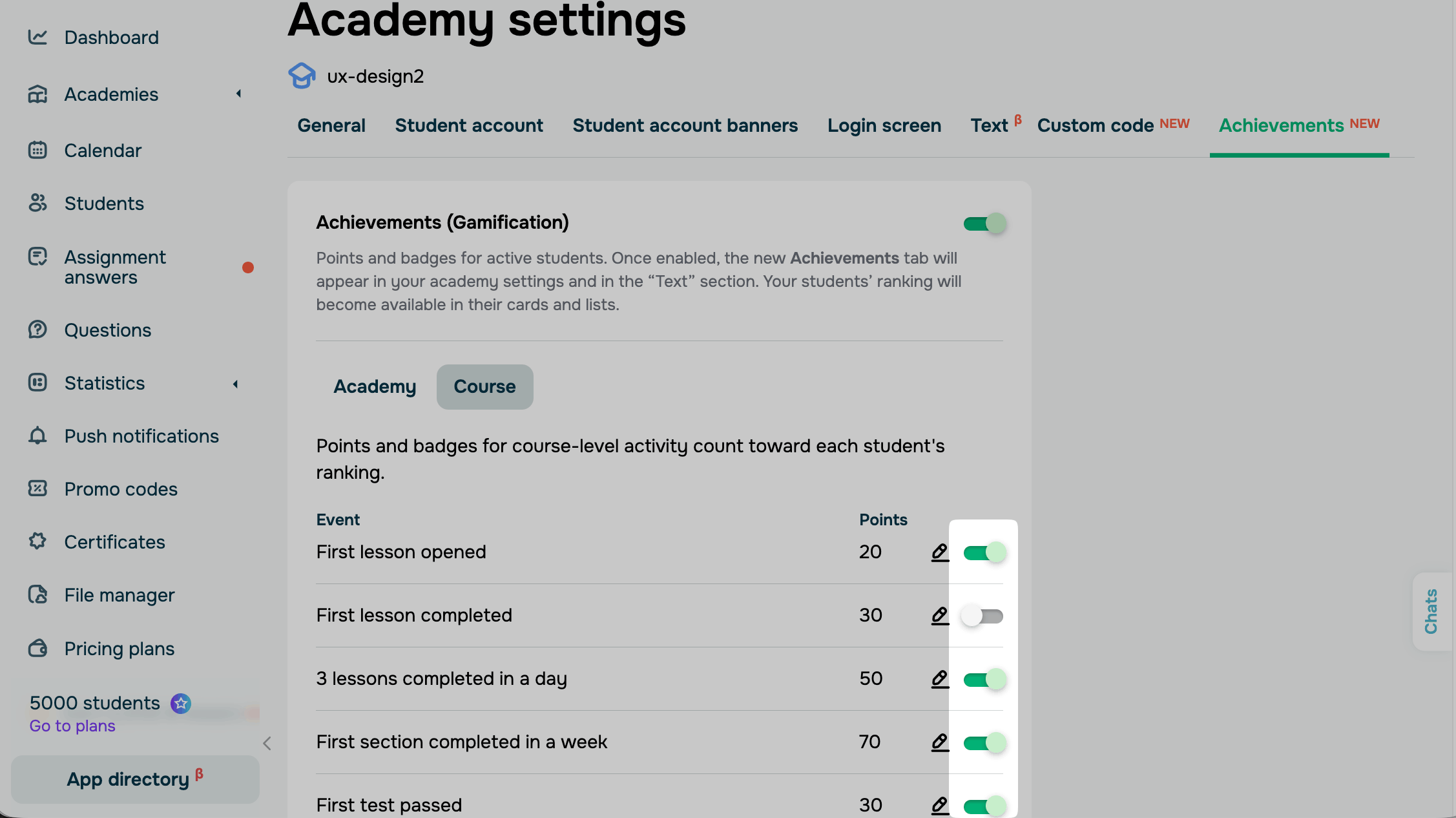
To turn gamification on, go to the Courses > Academy settings > Achievements tab and enable the Achievements (Gamification) toggle.
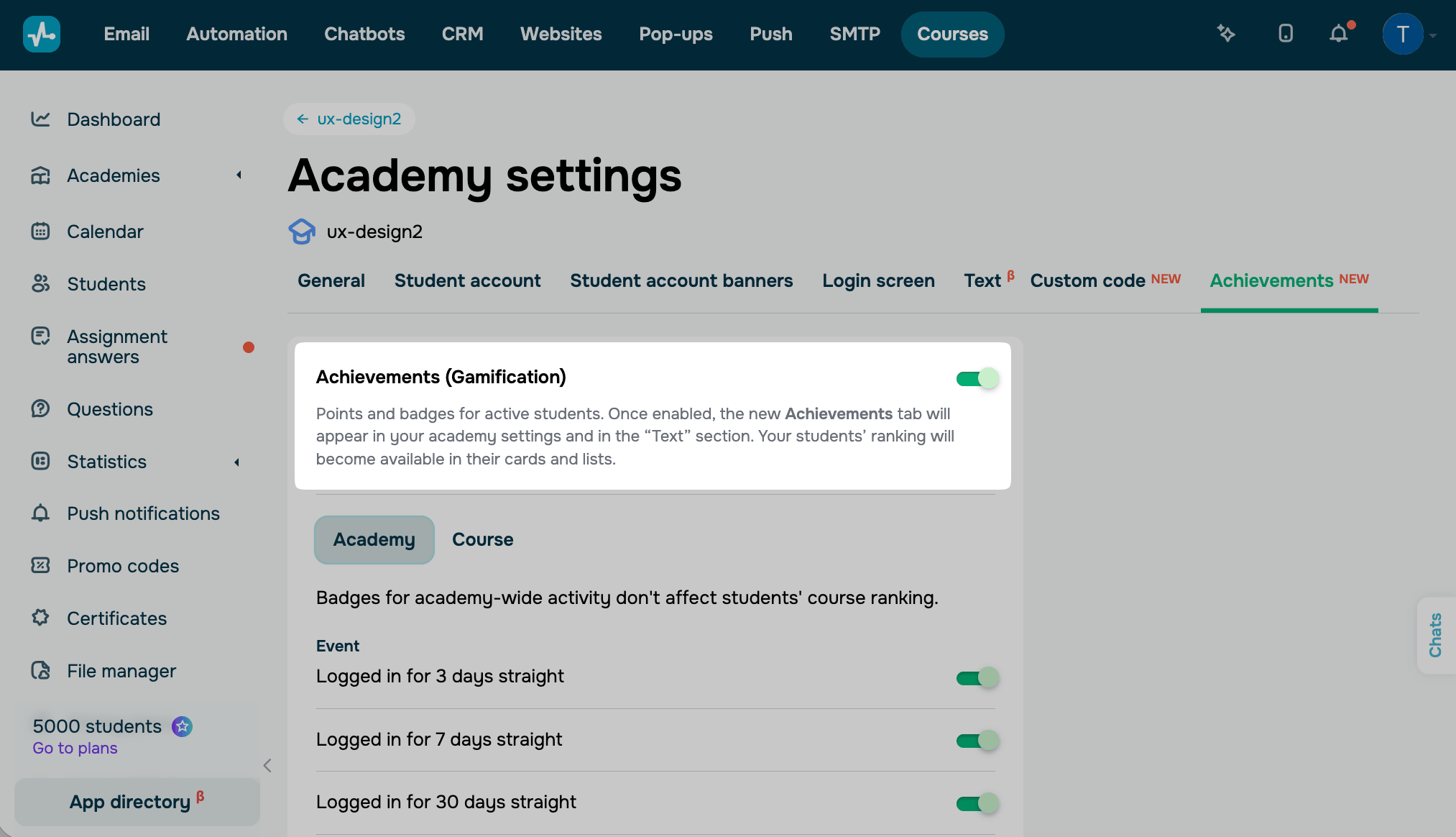
Once you turn the toggle on, the achievement events appear below. By default, all events are turned on.
The Academy tab marks milestones across your whole academy. Badges for academy-wide activity don't affect students' course ranking. Students can earn the following badges:
| Logged in for 3 days straight | Once |
| Logged in for 7 days straight | Once |
| Logged in for 30 days straight | Once |
| Scored 100 | Every time a student scores 100 points in a course |
| Scored 250 | Every time a student scores 250 points in a course |
| Scored 1,000 | Every time a student scores 1,000 points in a course |
| Completed 3 courses | Once |
| Completed 10 courses | Once |
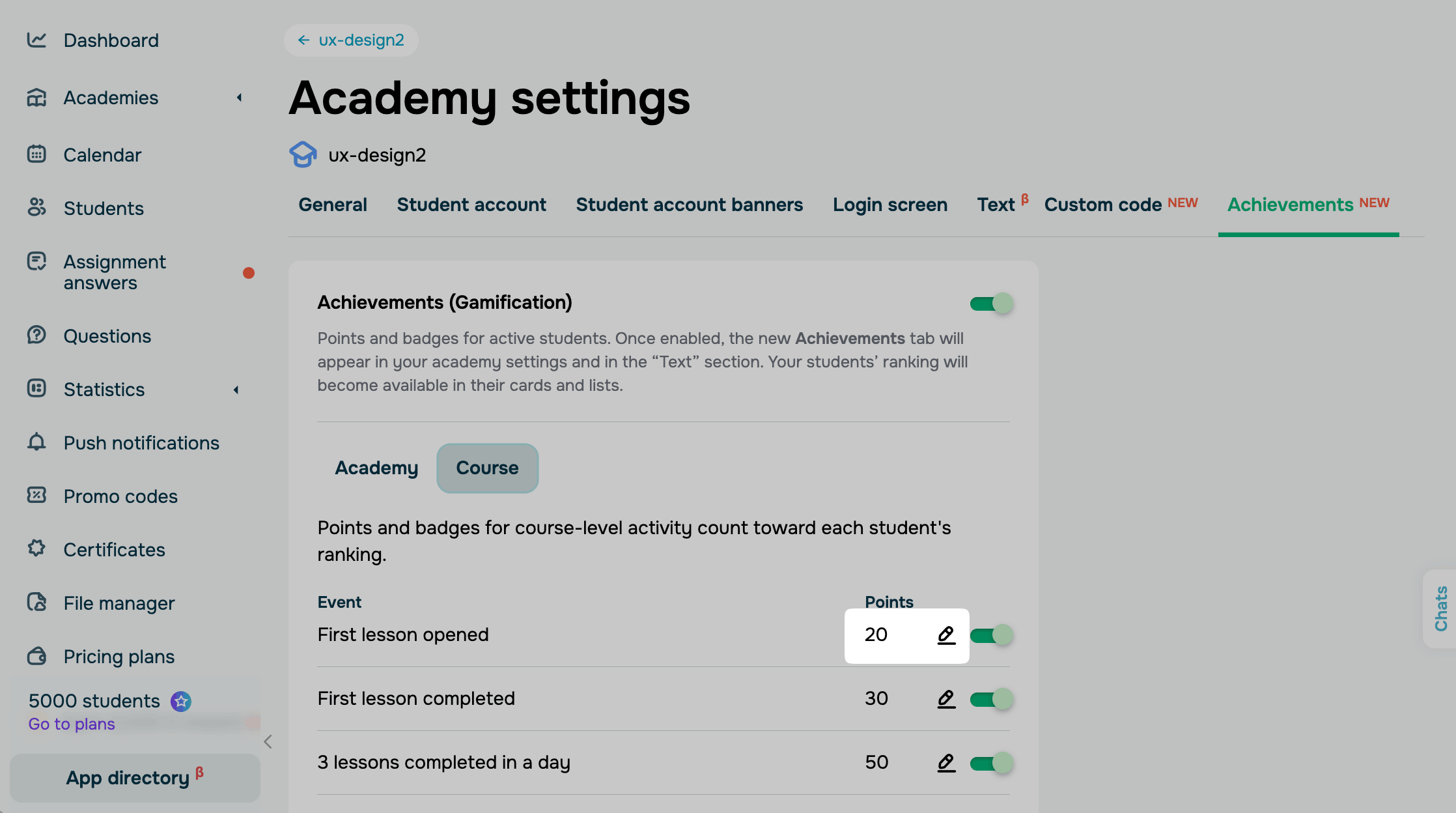
The Course tab award points in a specific course. Points and badges for course-level activity count toward each student's ranking. Students can earn the following points:
| First lesson opened | 20 points, once |
| First lesson completed | 30 points, once |
| 3 lessons completed in a day | 50 points, up to once a day |
| First section completed in a week | 70 points, once. SendPulse counts the week from the moment the student opens their first lesson |
| First test passed | 30 points, once |
| Every test passed | 20 points for every test after the first one |
| First assignment answer submitted | 30 points, once |
| Every accepted assignment | 20 points for every assignment you accept |
| First form submitted | 30 points, once |
| Every form submitted | 20 points for every form after the first one |
| Course completed | 100 points, once |
| First student to complete the course | 200 points, to one student per course |
Customize achievements
The default points and badge names work for all courses. To customize achievements, you can set your own points, rename the rewarding badges, and turn off the events you don't need.
Change points
To change how many points an event gives, go to the Course tab and click the pencil icon next to the event.
In the Points field, enter a new value and click Apply.
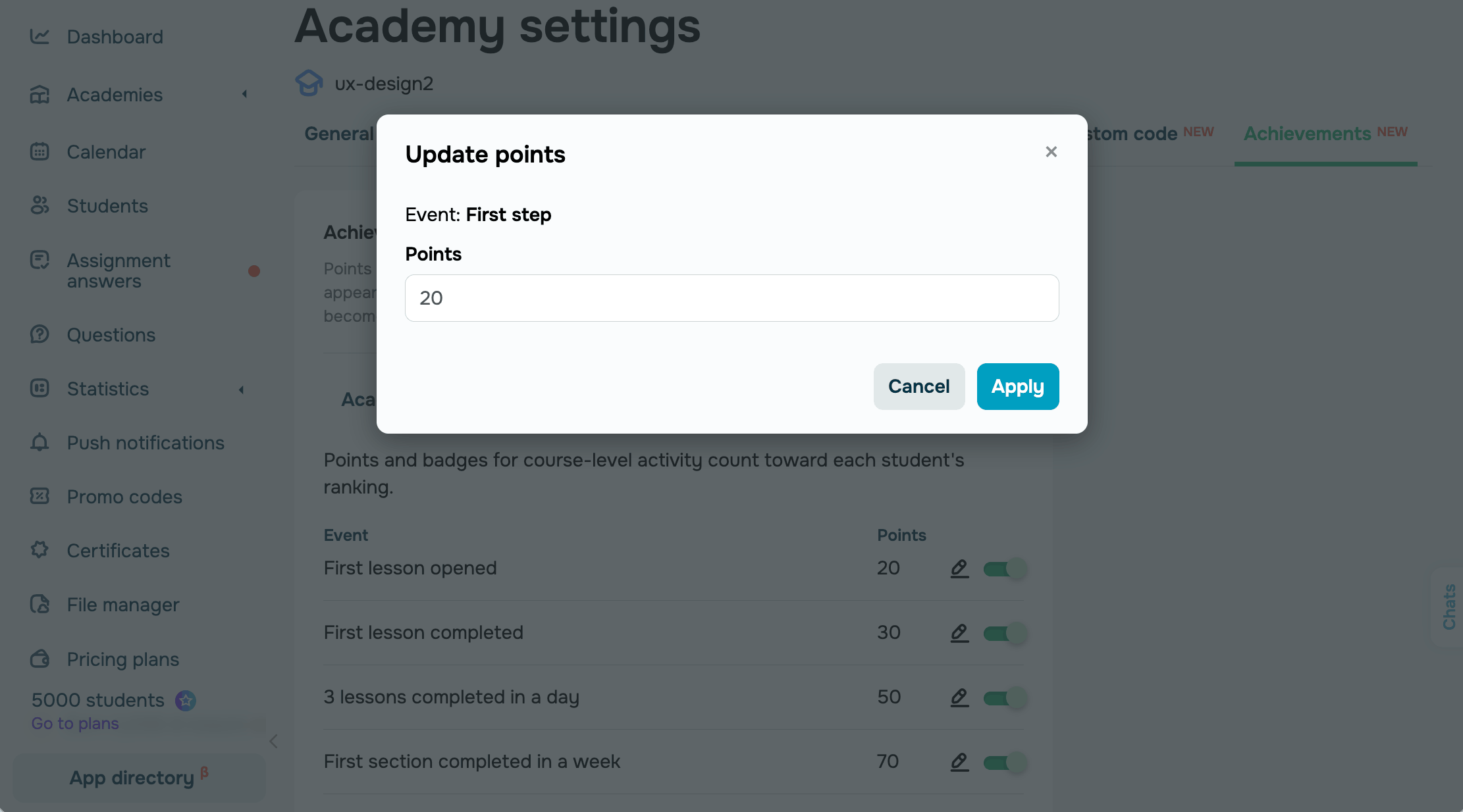
New values apply to every course in your academy.
Rename badges
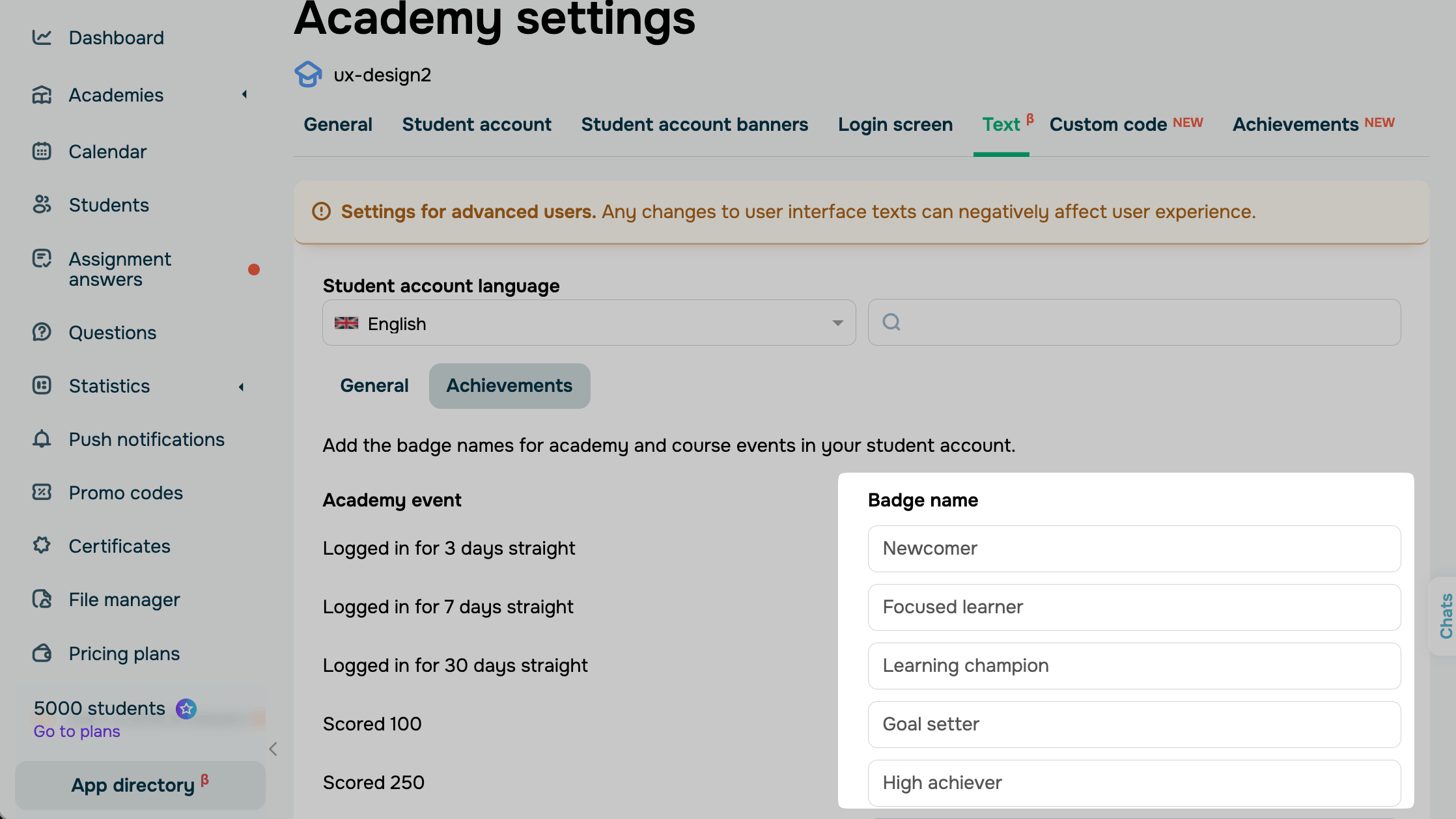
To rename badges in student accounts, go to Academy settings > Text > Achievements.
In the Account language field, select a language.
Enter new names next to the events in the Badge name column. Repeat this for every language your students use.
If you leave a field empty, students see the default name.
Turn off events
To stop rewarding an event, go to the Academy or Course tab, turn off the toggle next to the event and click Save. Students won't see this badge in their accounts.
For example, if your courses have no forms, turn off the First form submitted and Every form submitted toggles.
View student performance
Once students start earning points, you can see their ranking and badges.
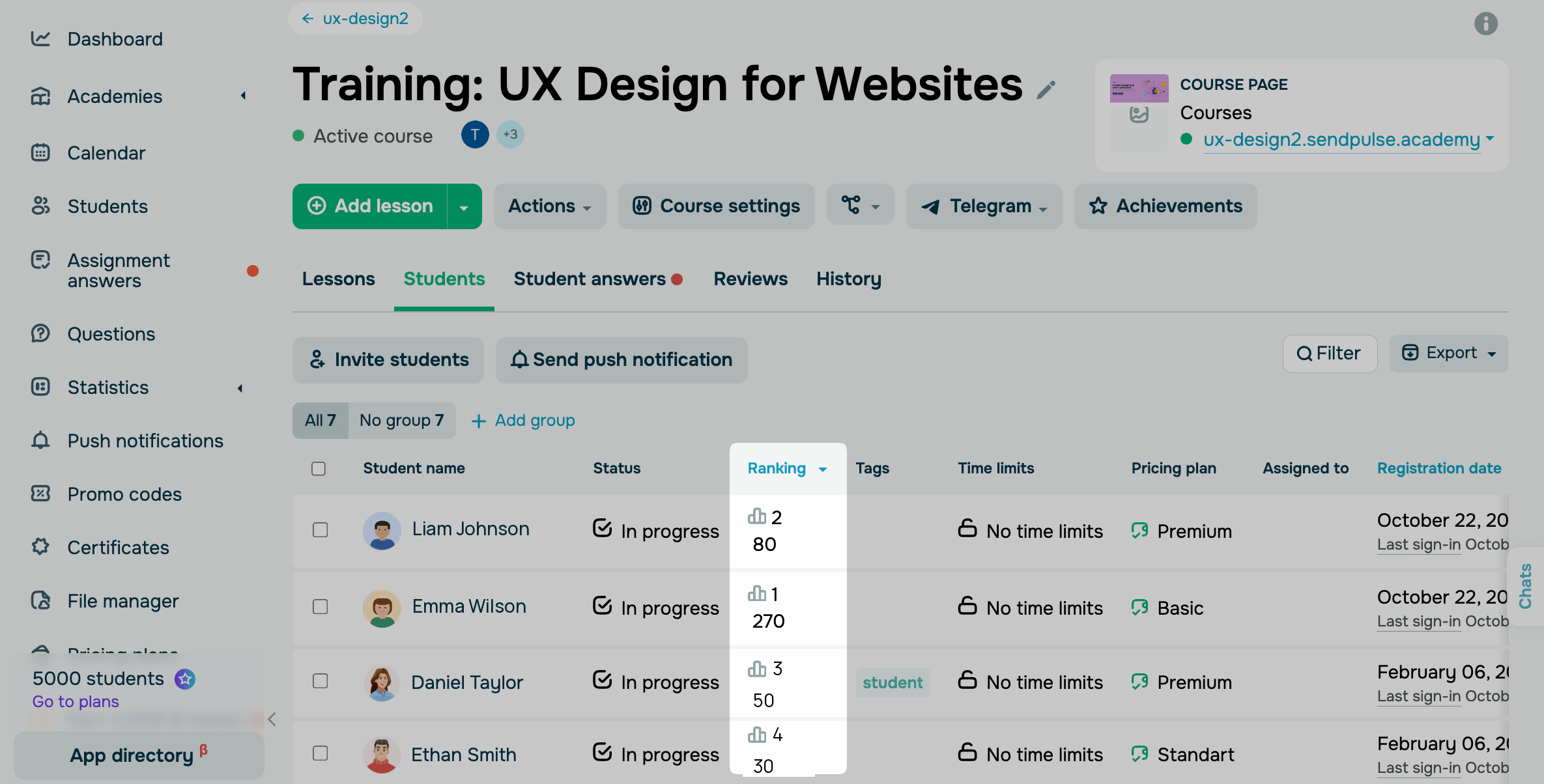
To view progress for all students in your course, go to the Students tab. The Ranking column shows each student's rank and points. To sort the list, click on the column title.
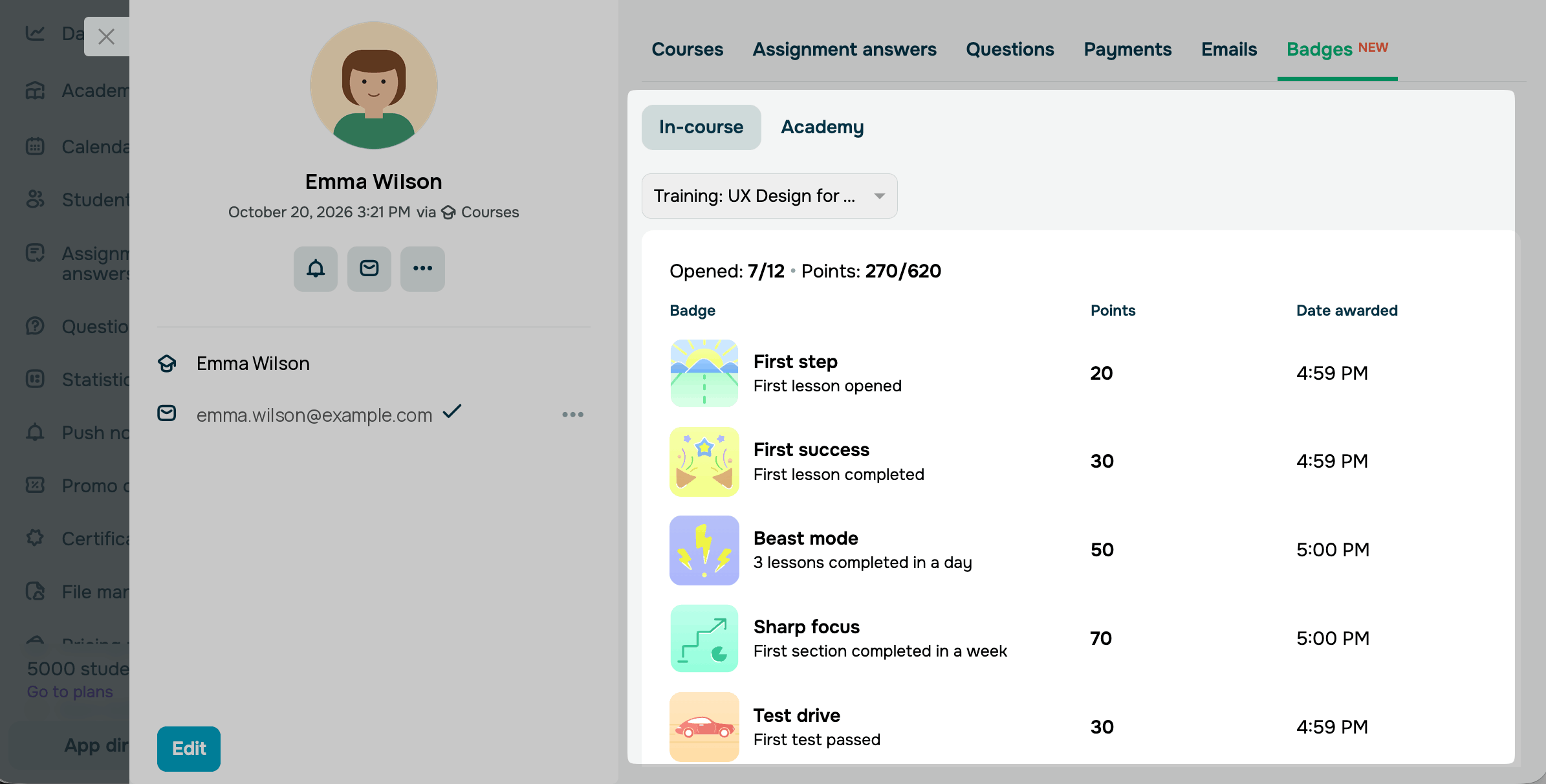
To view progress for each student, click a student's name to open their student card, and go to the Badges tab.
On the In course tab, select a course to see every badge with its points, the number of times earned, and the date. On the In academy tab, you can see the student's academy badges.
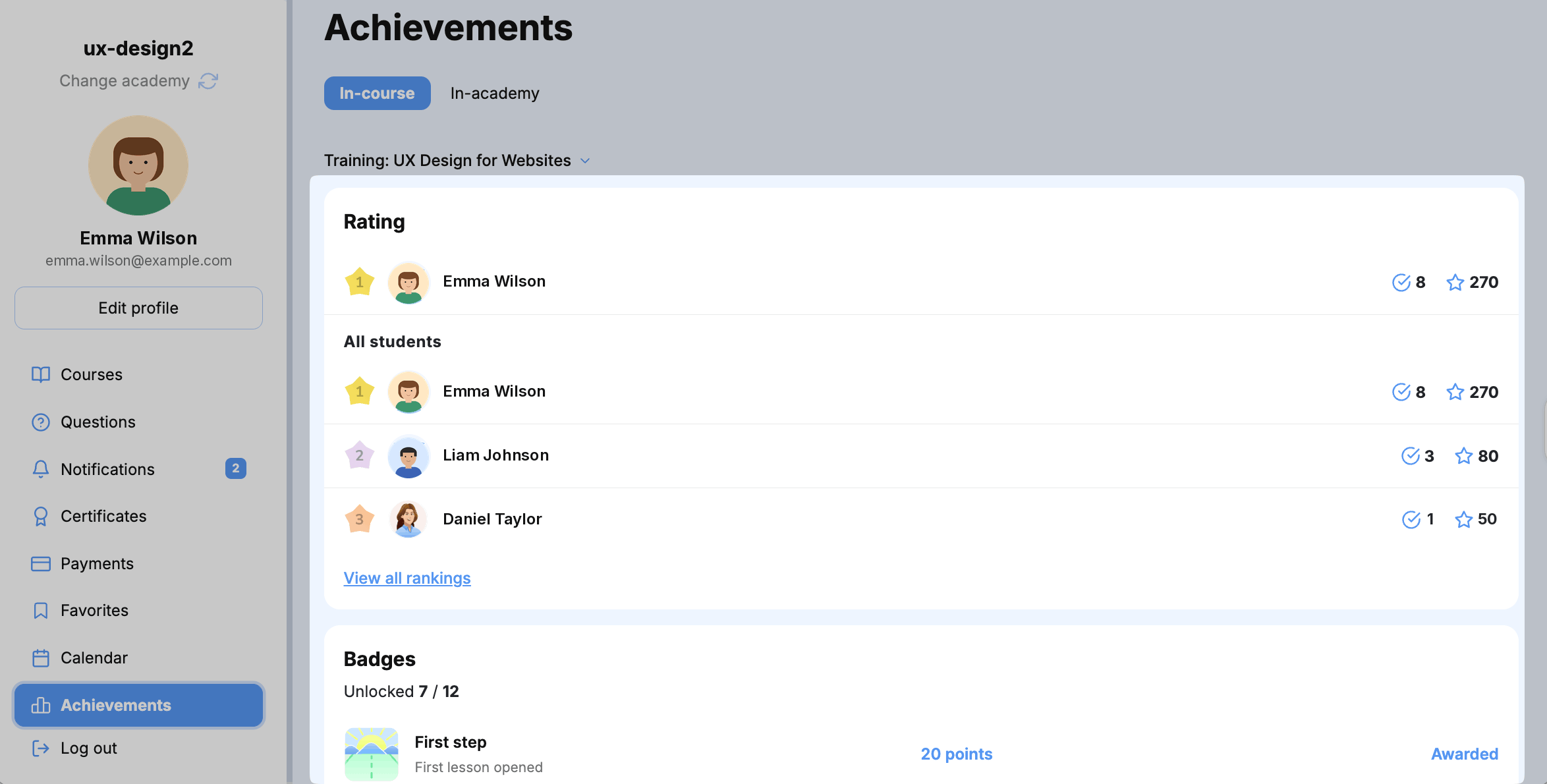
Also students can see their earned badges and rank position in the Achivements tab in their accounts.
Troubleshoot gamification issues
If gamification doesn't work as expected, one of these is the likely cause:
| Students don't get points or badges | Gamification or the event is turned off in Academy settings > Achievements. SendPulse counts points only while gamification is on. Turn on both. |
| A student completed 3 lessons but didn't get the badge again | SendPulse awards this badge up to once a day, so the student will get it again the next day they complete 3 lessons. |
| No one got the "First student to complete the course" badge | SendPulse awards this badge only to the first student who completes the course after you turn on the gamification. If no one has completed it yet within this period, no one has the badge. |
| Students lost their points and badges | Your academy has switched to a free pricing plan. SendPulse resets gamification progress when you downgrade, and you can't restore it. If you turn gamification off yourself, the progress comes back when you turn it on again. |
| The Ranking column is missing in the students list | Gamification is turned off for your academy. Turn it on in Academy settings > Achievements. |
 Last Updated: 23.10.2026





or