Element Text in course builder
The Text element holds the written part of your lesson: theory, instructions, and organizational details. You can use it in lessons, sections, and test descriptions. You can also generate the text with AI or personalize it.
Let's talk about how to add a Text element, generate and personalize your text, and format it.
Add a Text element
To add text to your lesson, drag the Text element from the left sidebar to the workspace, or click + and select Text.
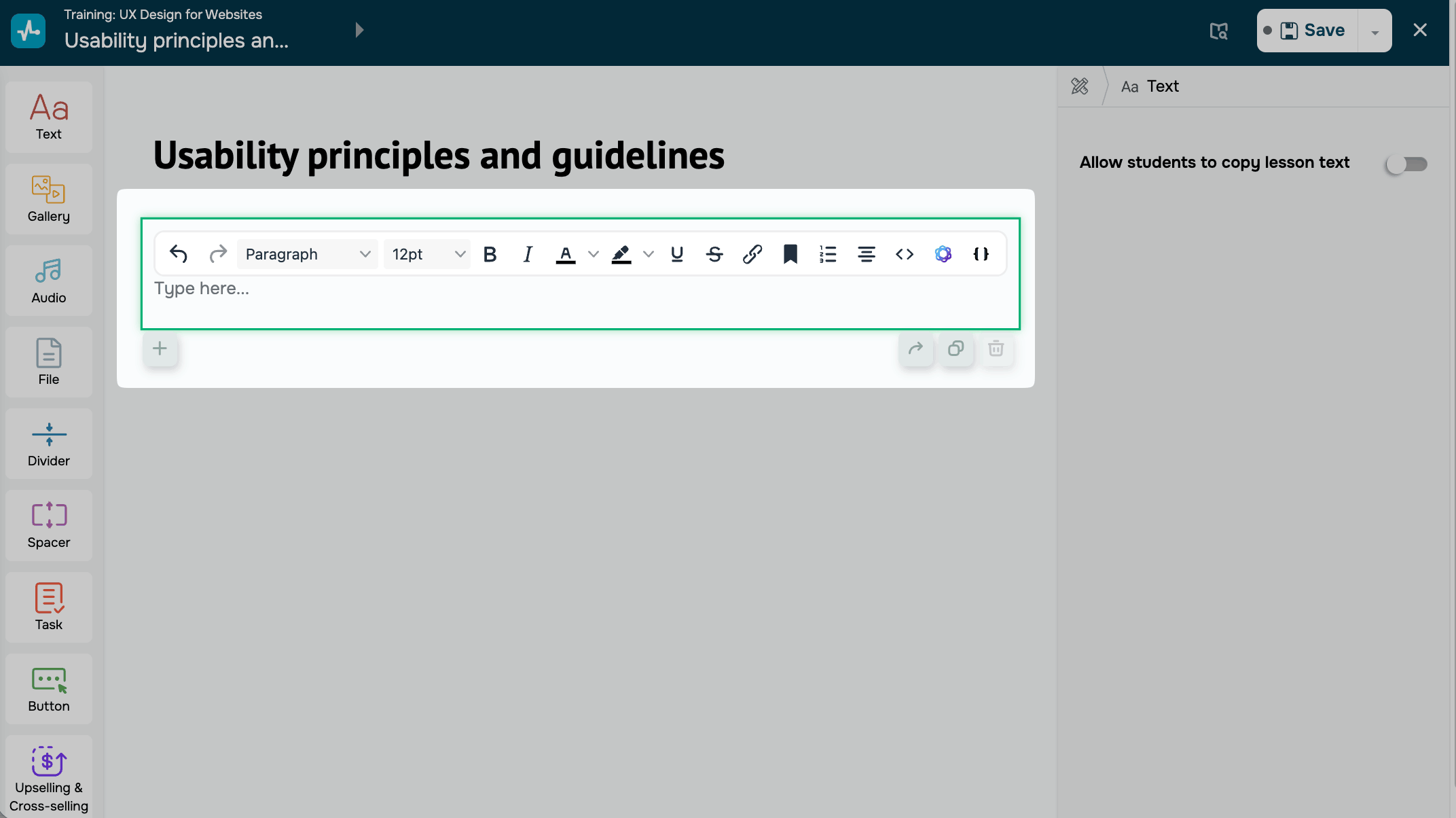
Click the element and type your text. The formatting toolbar appears above it.
Personalize text with variables
A variable is a placeholder that SendPulse replaces with each student's data. With variables, one lesson can greet every student by name or show their own login email address, so you don't need separate versions of the lesson.
To insert a variable, place the cursor where you need it, click { } in the toolbar, and select a variable from the list. The variable appears in double curly braces, for example, {{email}}.
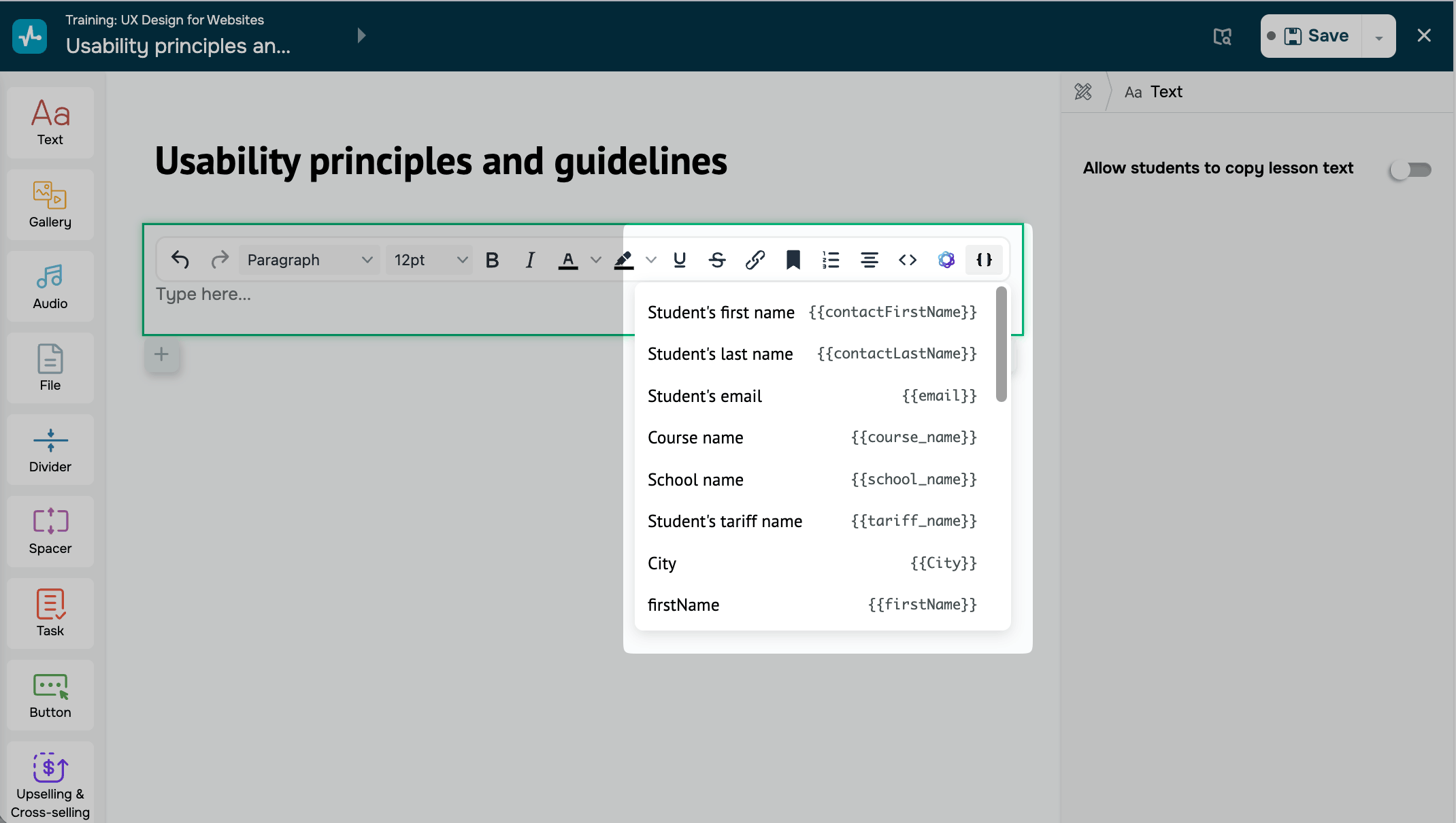
You can use the following course variables:
{{contactFirstName}} |
Student's first name |
{{contactLastName}} |
Student's last name |
{{email}} |
Student's email |
{{course_name}} |
Course name |
{{school_name}} |
School name |
{{tariff_name}} |
The name of the student's course pricing plan |
You can also use the student's CRM contact variables: system variables, such as {{firstName}}, {{phone}}, {{contact_id}}, and custom contact fields you've created.
To add your custom variables, go to CRM > Settings > Fields, and click Add field. Type a variable name and select its type.
Read more Manage contact attributes and Overview of CRM variables.
If a student's value is empty, for example, they haven't added a last name, the variable shows nothing. The rest of the text stays intact.
If you type a variable that doesn't exist, students see it as plain text, so check the spelling. For security reasons, there's no variable for a student's password.
Generate text with AI
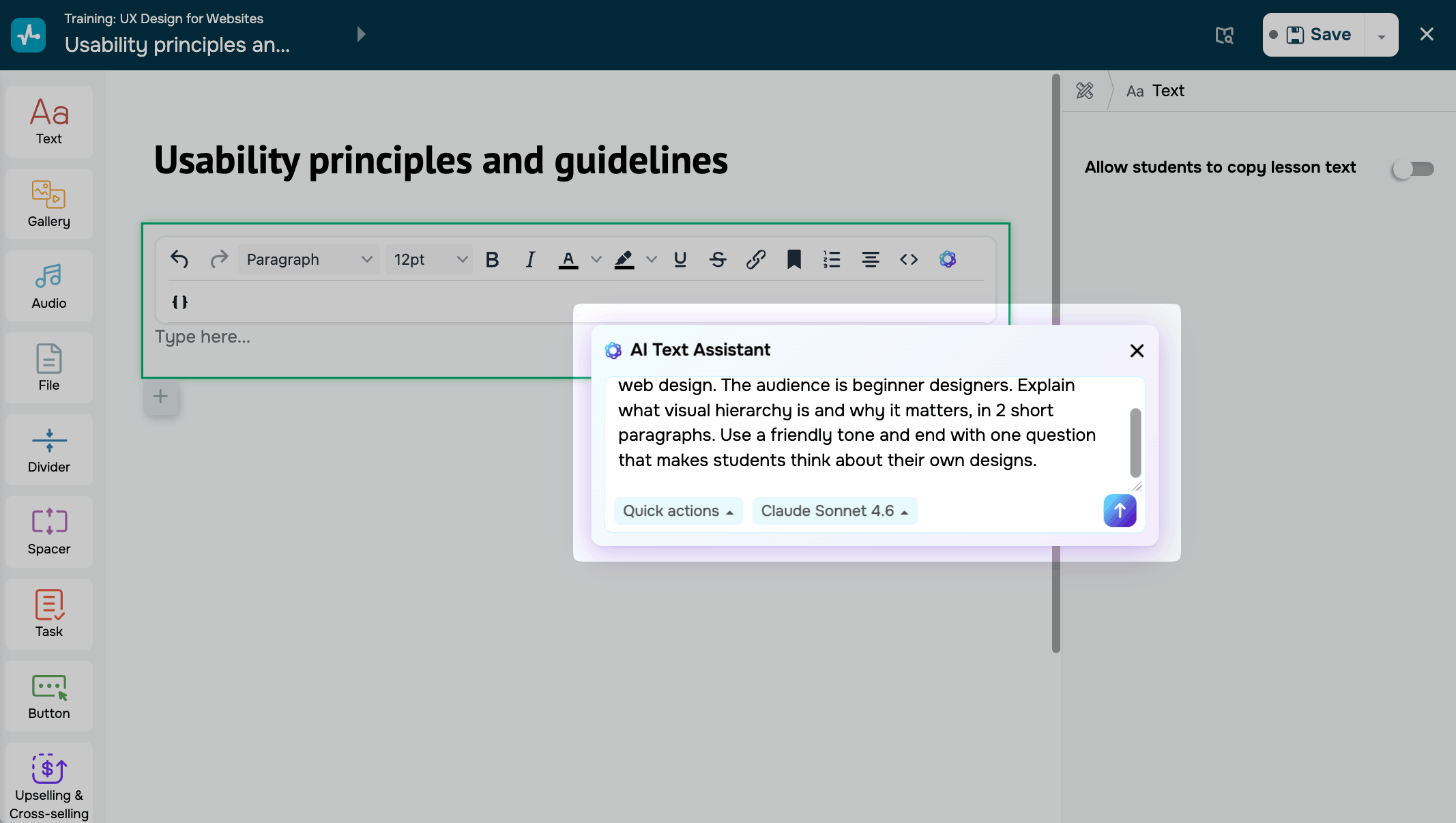
To write or improve your lesson text with AI, click the AI icon in the toolbar.
Enter your prompt in the Type in your prompt. field. Describe the topic, audience, language, and length of your text, or select a ready-made action from the Quick actions list.
Choose an AI model and click the arrow button. AI will generate the text based on your prompt.
Edit the text manually if you need to. Check the facts before you publish the lesson.
SendPulse provides up to 200 free AI requests across all tools. To track how many requests you have left or use your own AI account, add your API keys in your account settings.
Read more: Integrate ChatGPT with SendPulse tools, Integrate Claude with SendPulse tools, and Integrate Google Gemini with SendPulse tools.
Format text
To format your text, select text area and use the following tools in the toolbar.
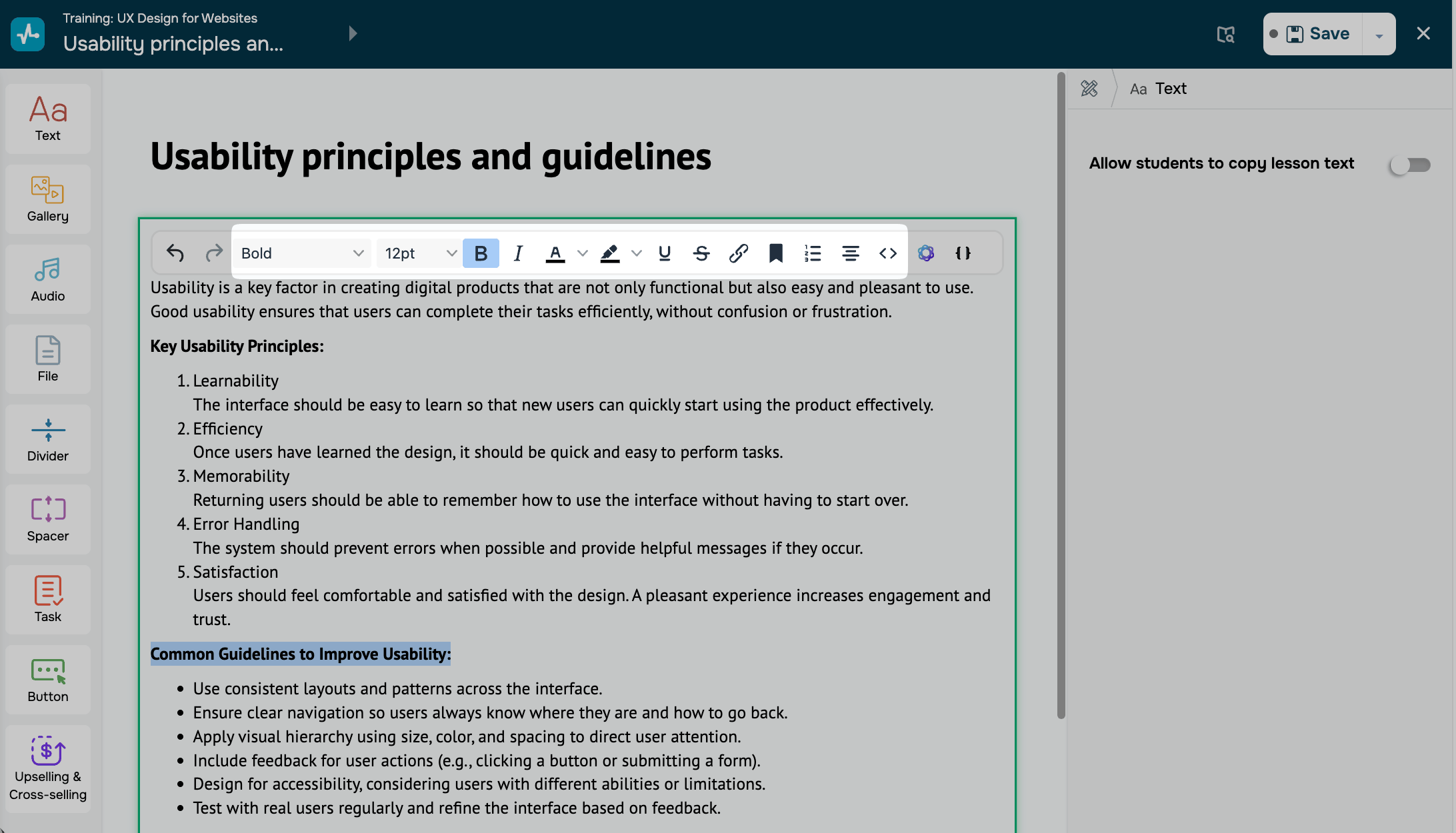
You can use the following tools:
| Undo/redo | Undo or redo recent changes. To undo multiple changes, click the arrow multiple times. |
| Paragraph | Set the text type: a paragraph, a heading from 1 to 6, a blockquote, a div, or preformatted text. Use Heading 1 for the main lesson title, Heading 2 for sections, and Headings 3–6 for smaller parts. |
| Font size | Select a font size from 8 to 36. |
| Bold and Italic | Emphasize key terms. |
| Text color | Select a text color from the palette. |
| Background color | Highlight text with a background color. |
| Underline and Strikethrough | Underline or strike through the selected text. |
| Link | Add a link to the selected text. In the URL field, insert your link. In the Text to display field, edit the visible text. Optionally, add a Title for a tooltip, and in Open link in, select Current tab or New tab. |
| List | Create a numbered or bulleted list. |
| Alignment | Align your text to the left, center, or right, or justify it. |
| Source code | Edit your text as HTML code. |
Text you copy from other sources can carry hidden formatting that breaks your layout. To paste text without formatting, press Ctrl + Shift + V on Windows or Cmd + Shift + V on Mac.
If unwanted styles still appear, open the source code, find the fragment, and delete the extra HTML tags.
Customize the text style
To change the font of one Text element, click the element, and in the settings on the right, click Page Style > Customize.
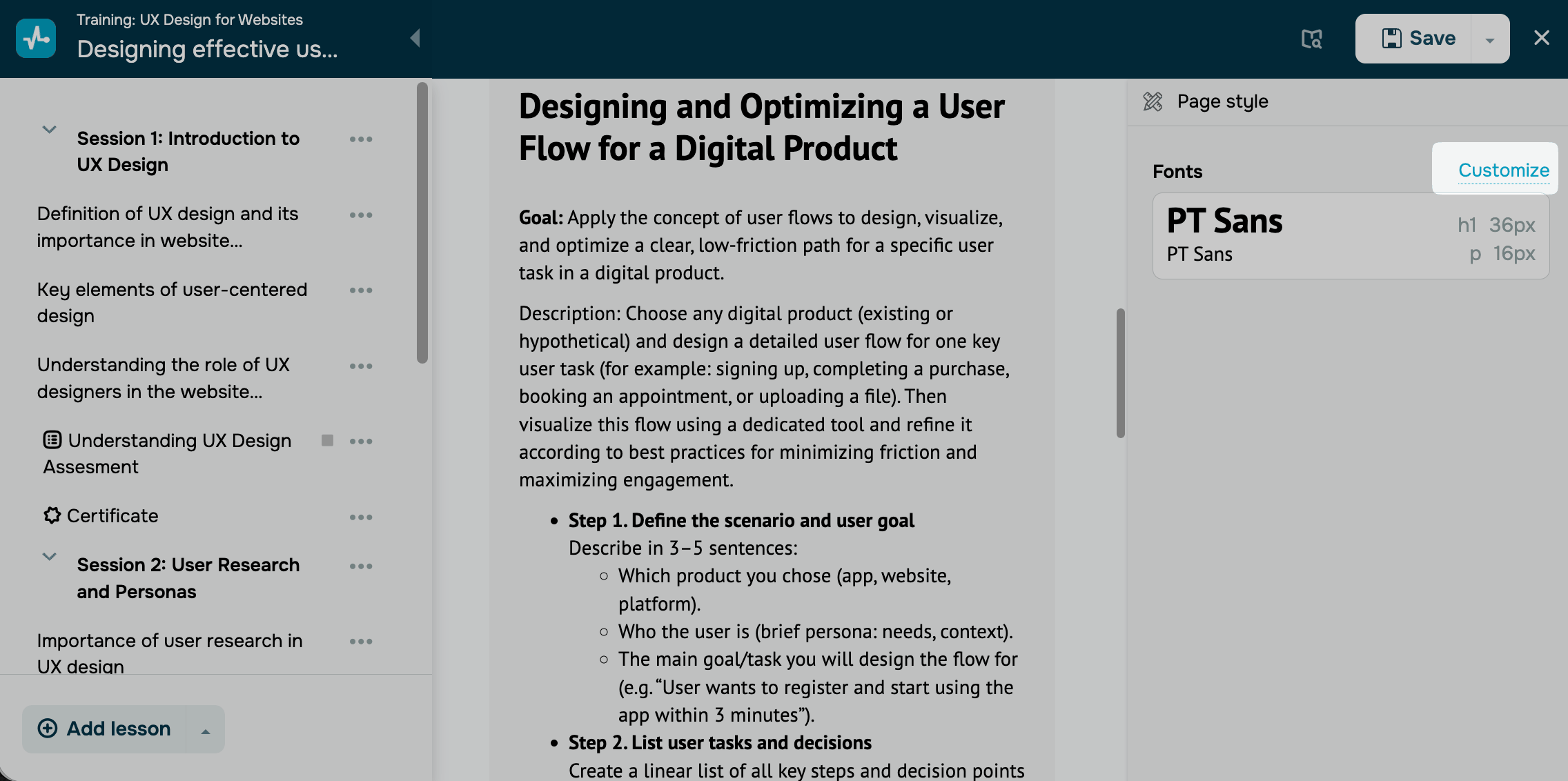
You can adjust the following settings:
| Font | Sets the font. |
| Font size | Sets the font size from 8px to 200px. |
| Line height | Sets the spacing between lines. A value of 150% makes lines 1.5 times the height of your text. |
| Font weight | Sets the text thickness: bold, normal, or light. |
| Uppercase | Makes all letters uppercase. |
| Italics | Italicizes the text. |
Click Save. Your changes updates right away.
Next, add other elements to your lesson, such as video or audio, or create a test.
 Last Updated: 24.07.2025





or