Create a test
You can create a test to assess students' knowledge and skills for each section of the course they complete. Customize the test page, add questions and other media, and set a score for each correct answer.
Add a test
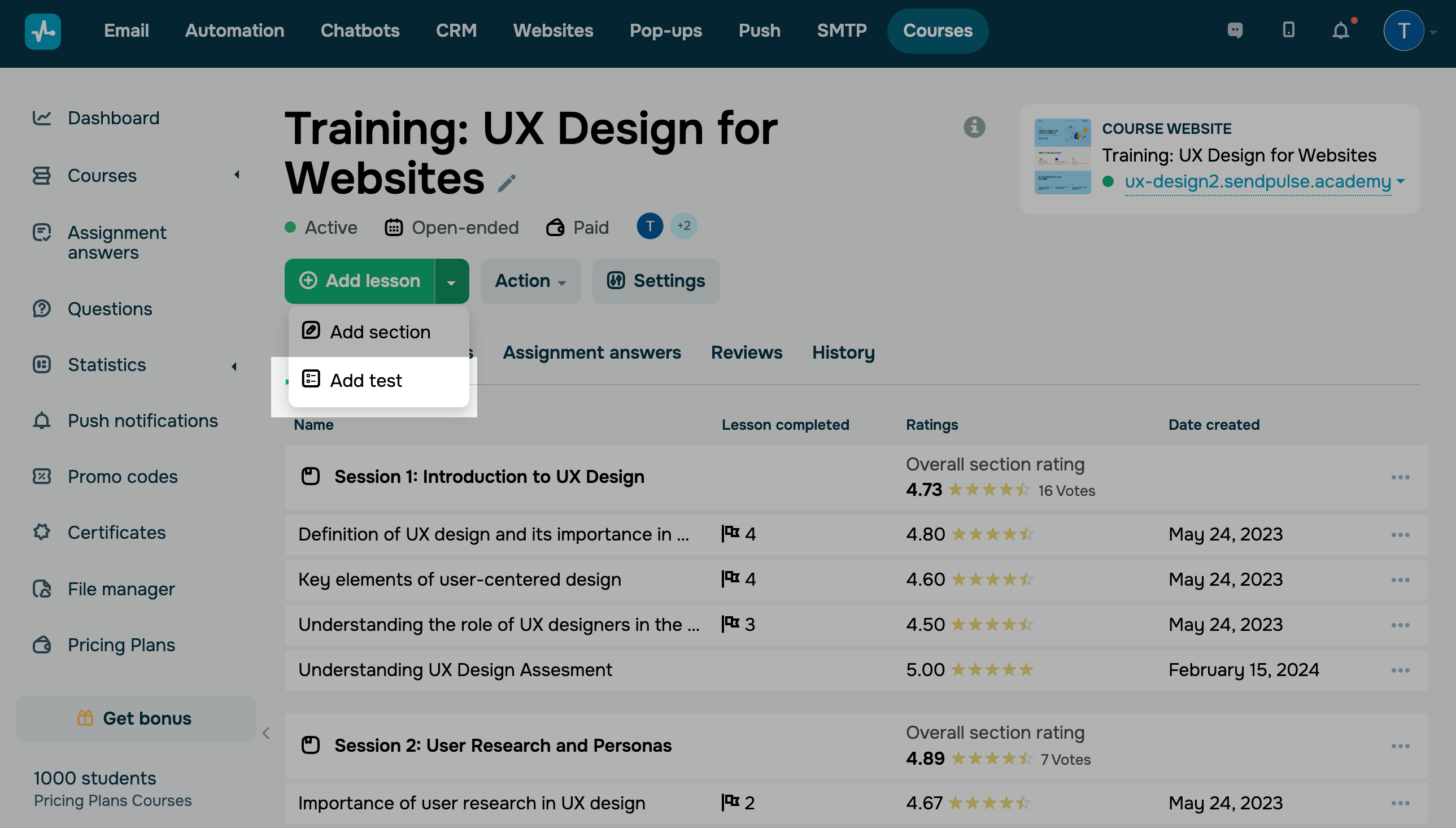
Go to your course page. Click on the arrow next to the Add Lesson button, and select Add test.
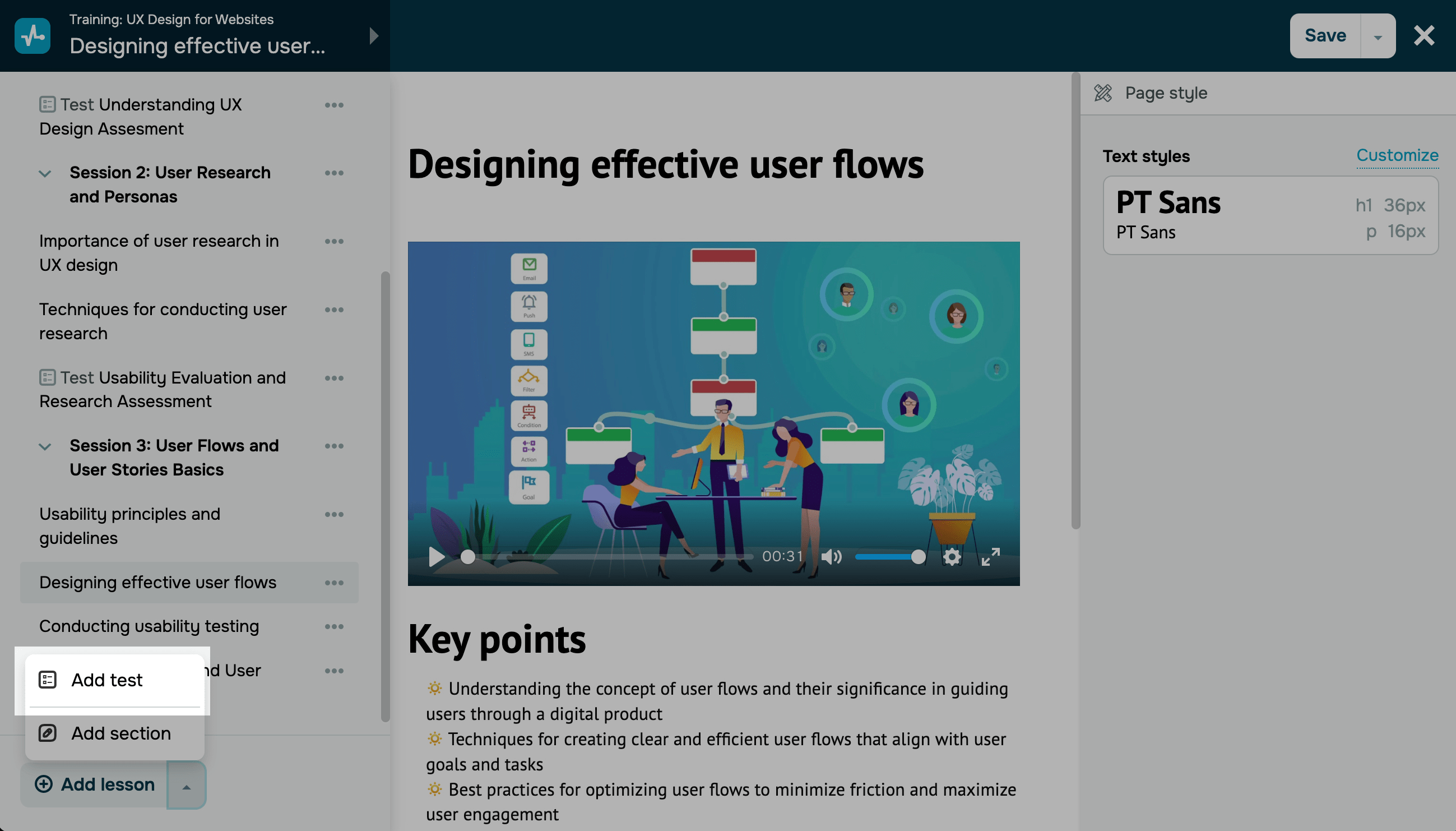
You can also create a test using the lesson builder. Click on the top left menu, and below the lesson list, click on the arrow, and select Add Test.
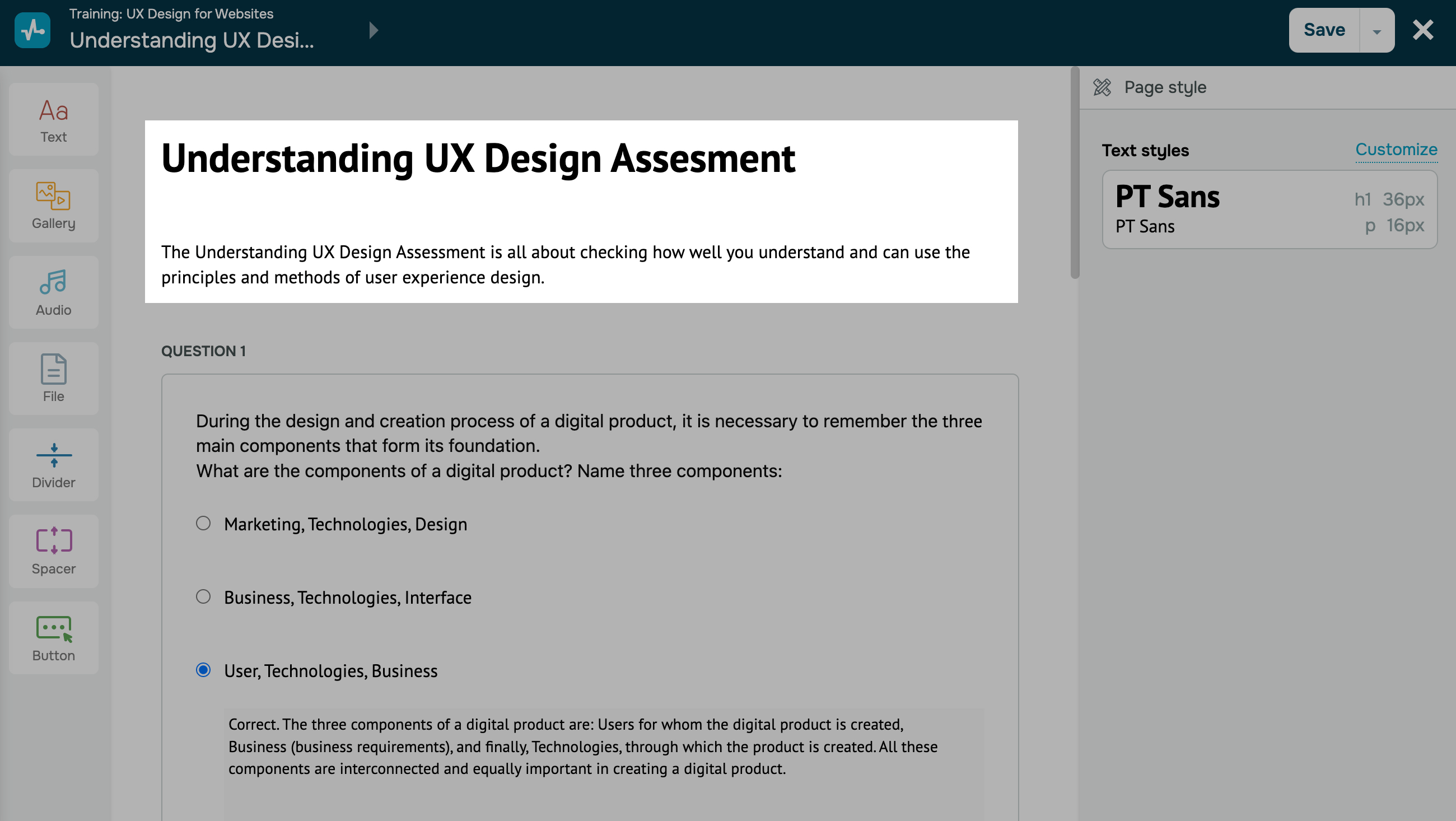
Enter a name for your test. Below the title, you can include a test description to give students an overview of the topics covered.
Formatting in certain standard elements, such as section and lesson titles or answer options in tests, is not editable. To apply custom styles, add a text element.
Add a question
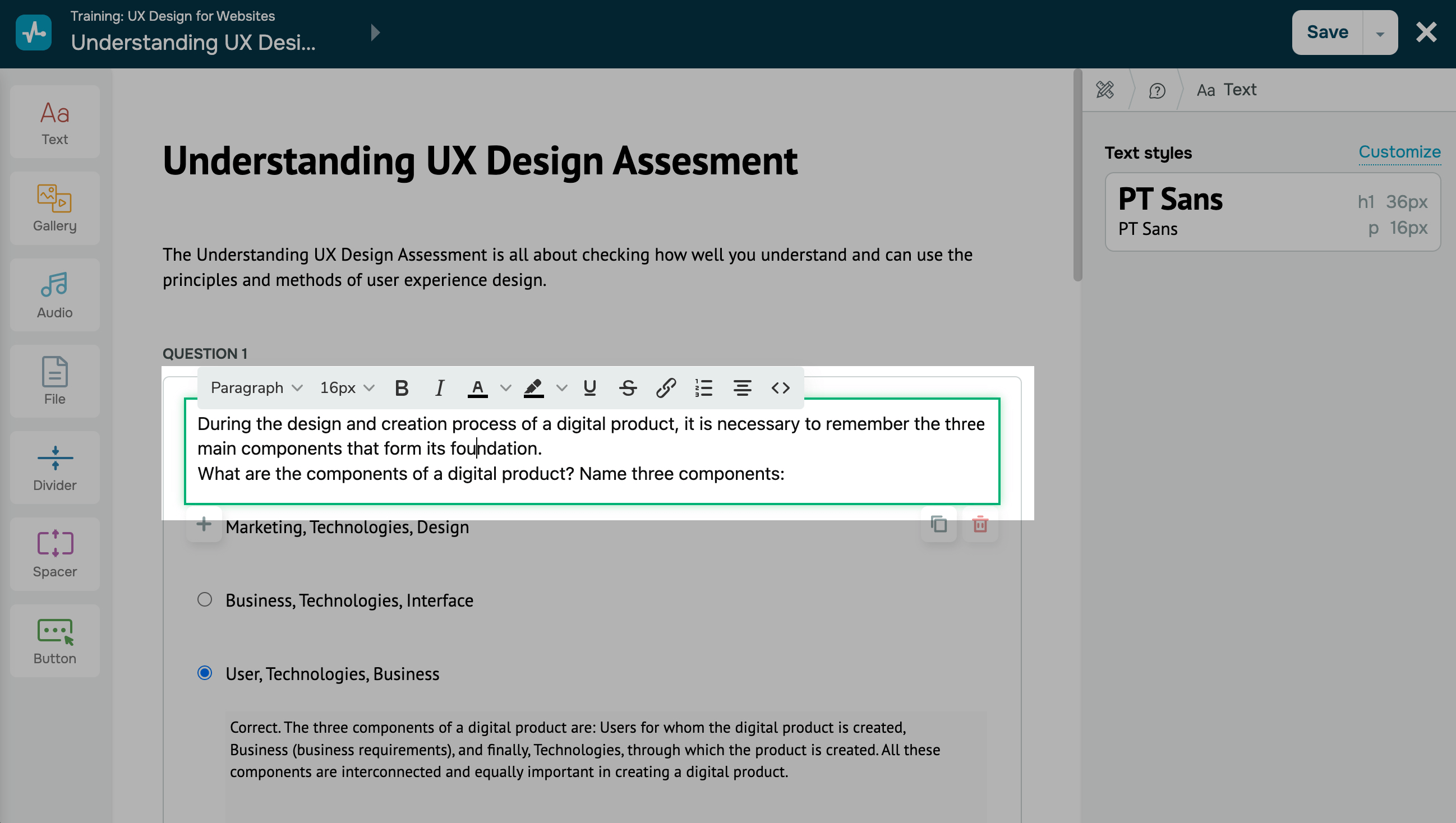
Enter the question text. To change the question formatting, click on the text itself — you will see the editing panel. Change the color and font to highlight keywords and headings.
You can also add a link, format the text as a list, and add your style code via <>.
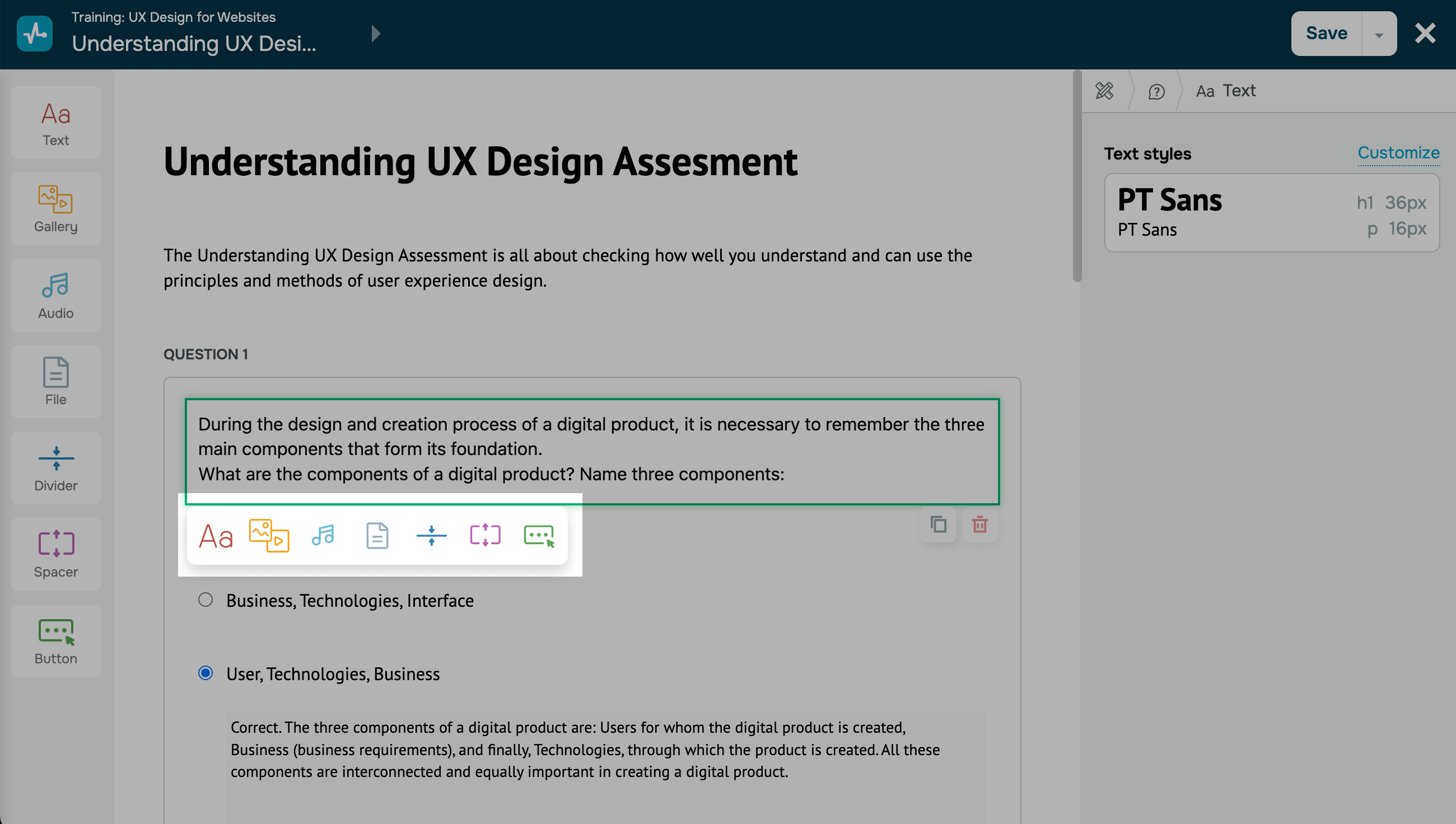
You can add extra elements to every question. Click +, and select an element. For example, you can add images or audio recordings and ask students questions about them.
You can configure test elements the same way you configure lesson elements. Read more about how to customize elements: Add elements.
Add answer options
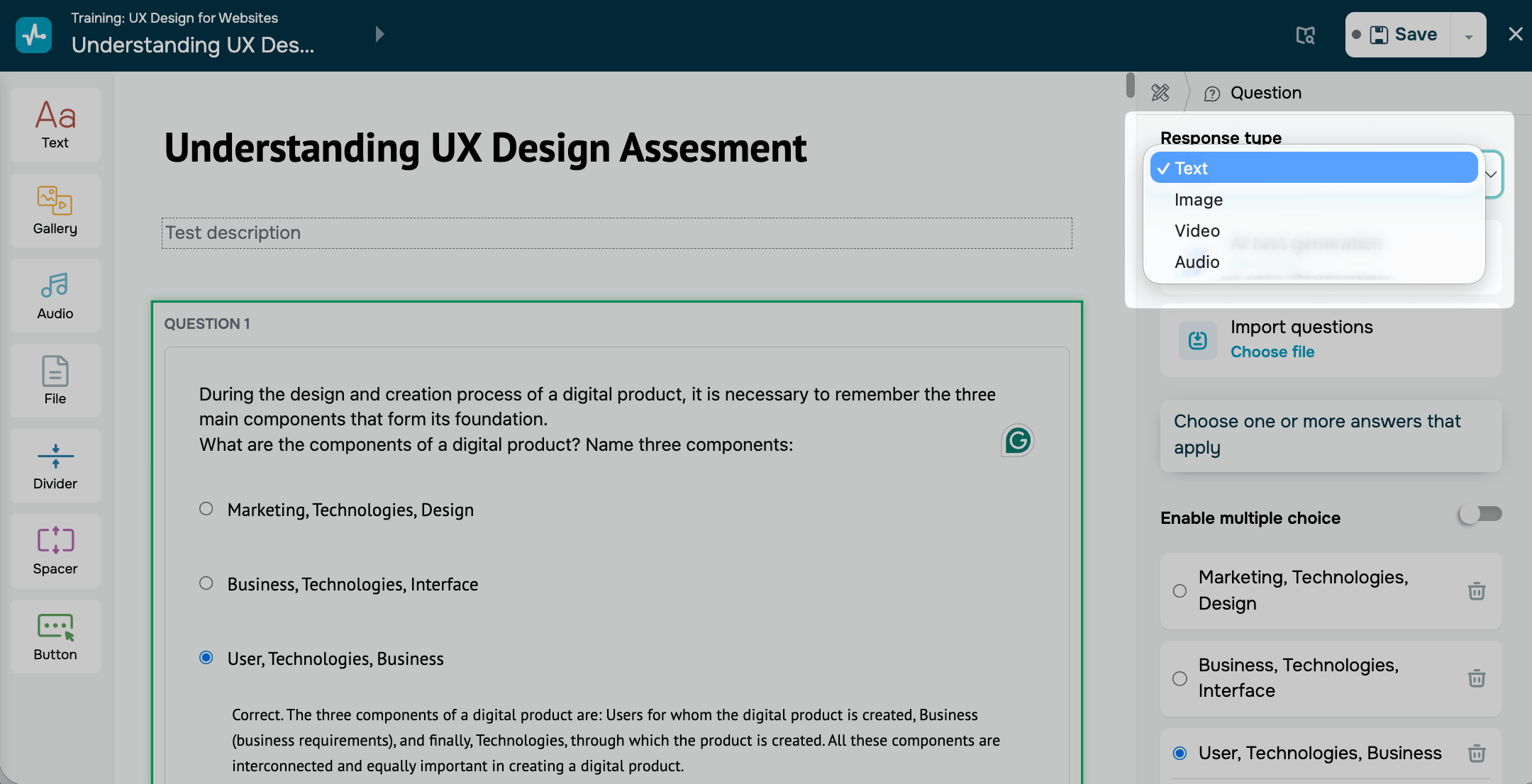
Response options can contain text only or text with an image, a video, or an audio file. You choose one response type for the whole question, and it applies to all its response options.
To choose the response type, click the question. On the right, select one of the following types from the Response type drop-down list:
| Text | Students see response options as text only. This type is selected by default. For example, ask students to choose the correct definition of a term. |
| Image | Adds an image to each answer option. For example, you can use it to ask students to choose the right chart or design. |
| Video | Adds a video to each answer option. For example, you can use it to ask students to choose the clip with the correct technique. |
| Audio | Adds an audio file to each answer option. For example, you can use it to ask students to recognize a word by ear. |
The Image, Video, and Audio types are available on paid pricing plans. If you downgrade to a free pricing plan, you can save a test with these types only after you change them to Text.
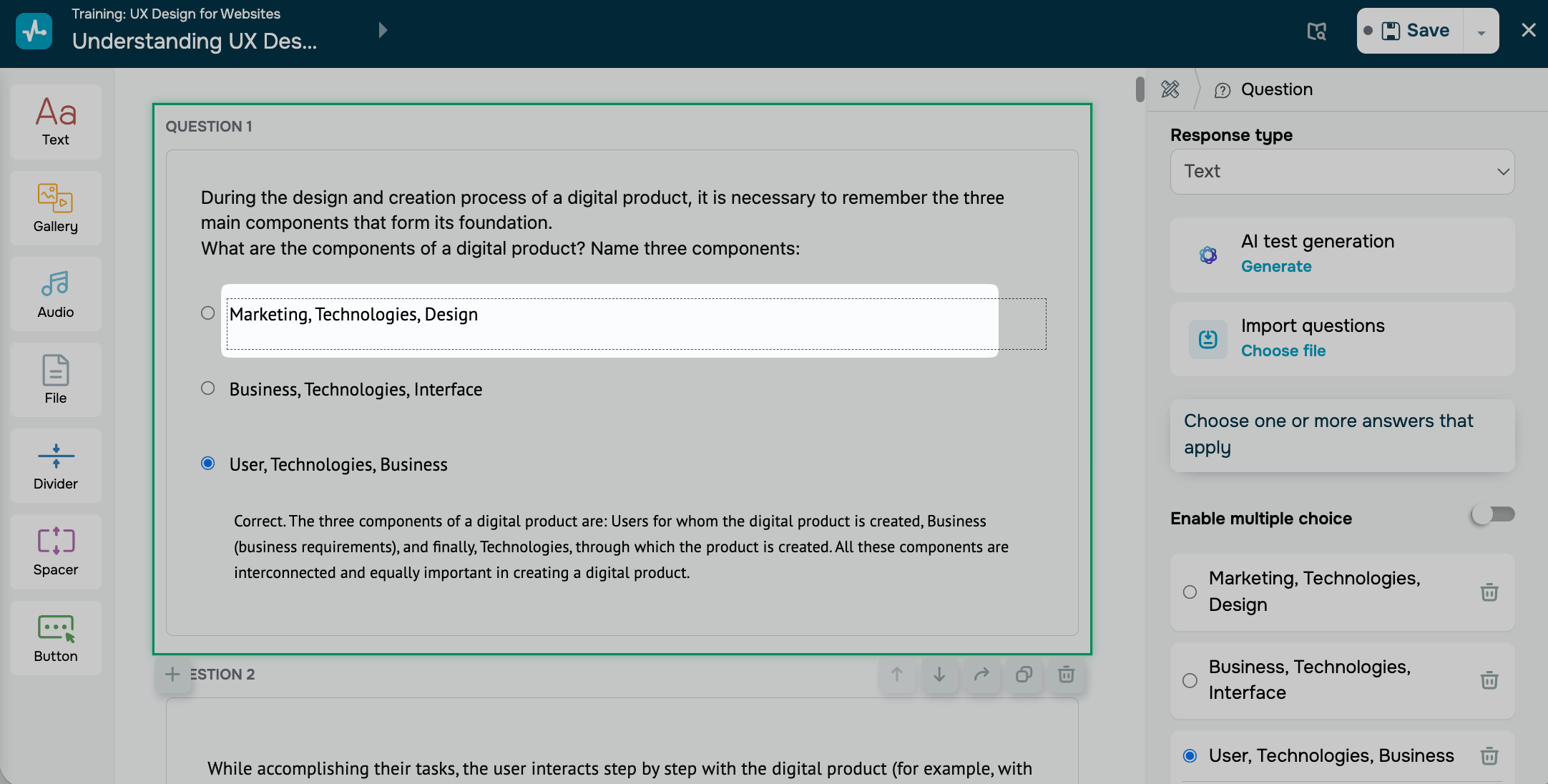
Next, fill in each answer option in the input field. If you selected the Text type, enter the answer text next to each option.
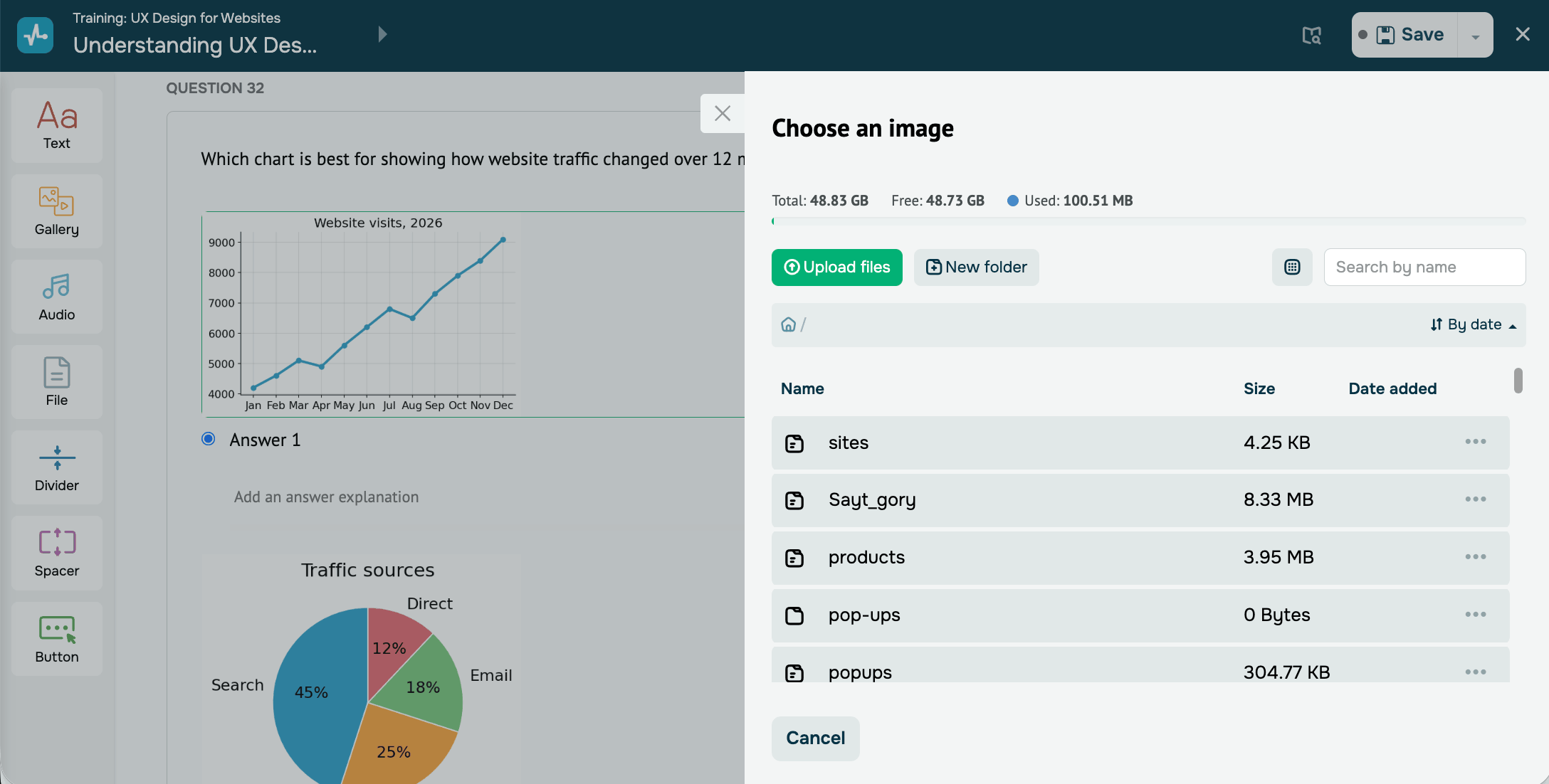
If you selected the Image type, click the placeholder above each option. Choose a file from the file manager or upload a new one. Then, add a caption to each option. For an Image type you can additionally customize its style: width, rounding and alignment.
We recommend using JPG, PNG, or WebP images that are 600–800 px wide and up to 1 MB in size. Use the same aspect ratio for all answer options, preferably 1:1 or 4:3.
If you selected Audio or Video types, click the placeholder above each answer option. Select a file from the file manager or upload a new one, then add a caption.
For audio, we recommend MP3 files that are 1–2 minutes long and up to 5 MB in size. For video, use MP4 (H.264) files with a resolution of 1280 × 720 px (16:9), a duration of 1–2 minutes, and a file size of up to 50 MB.
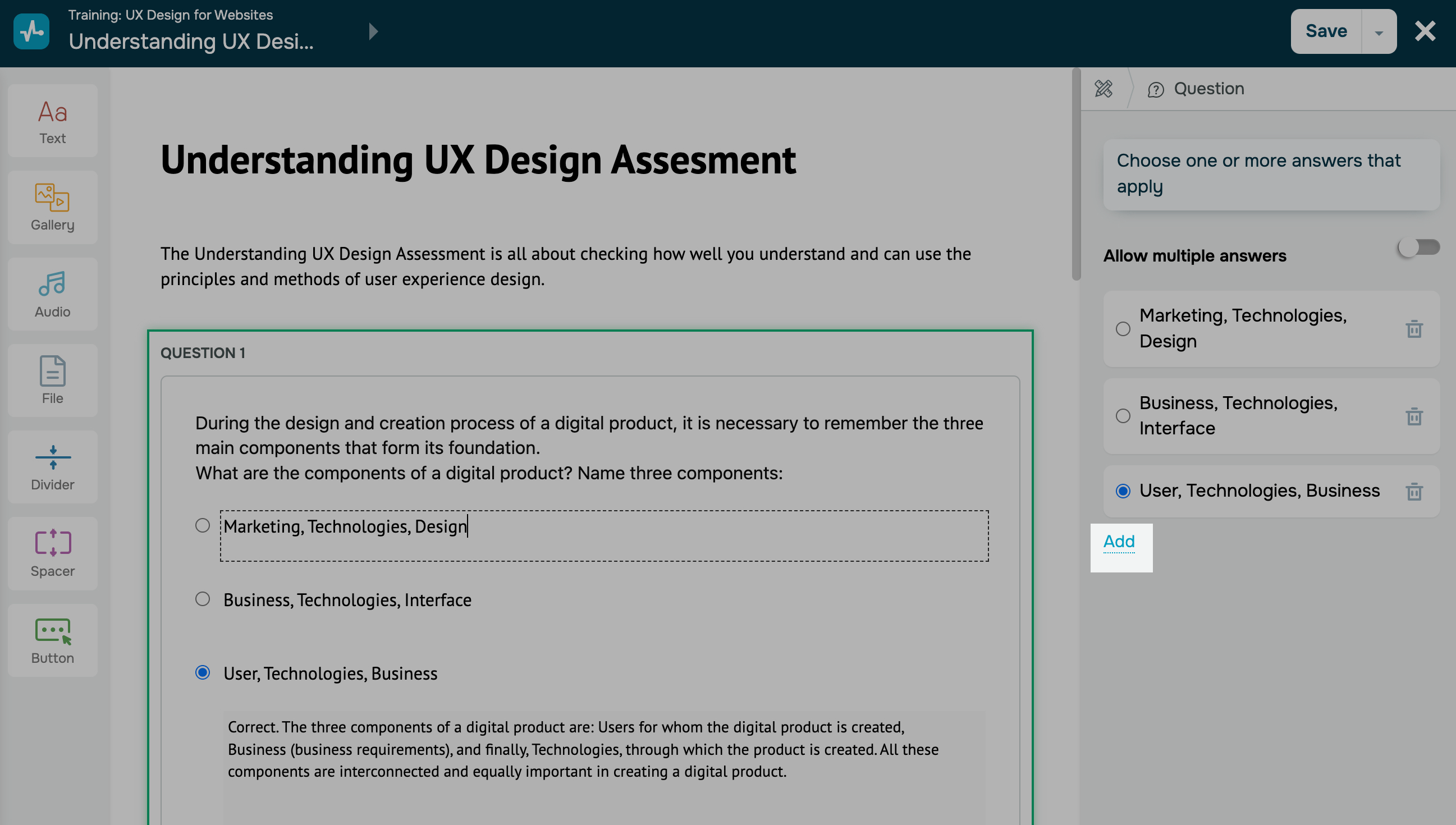
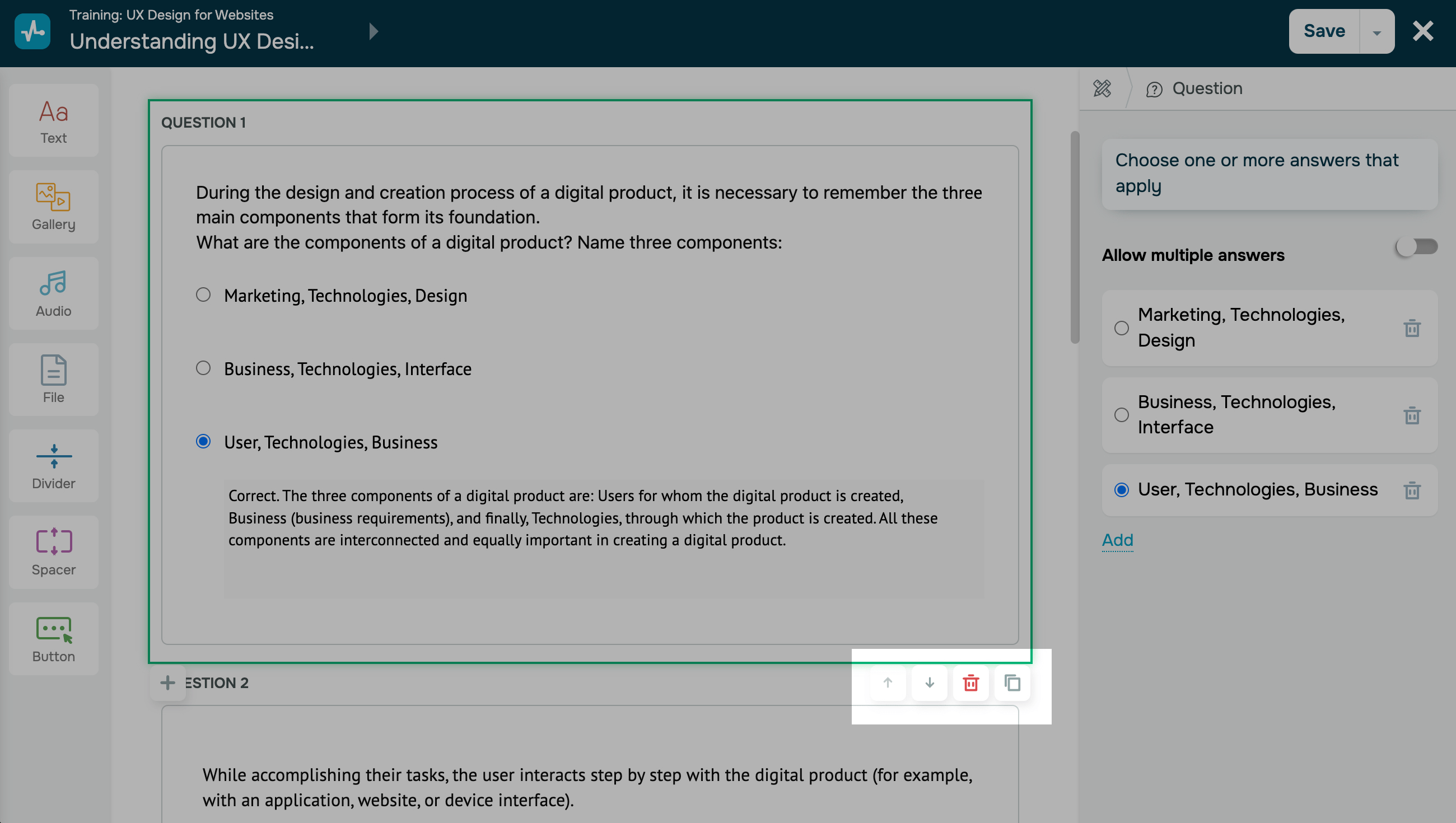
To add more answer options, go to the question customization panel. Click an answer option, and in the right panel, click Add. You can add up to 10 answer options.
Choose the correct answer
Select the correct answer in the panel on the right.
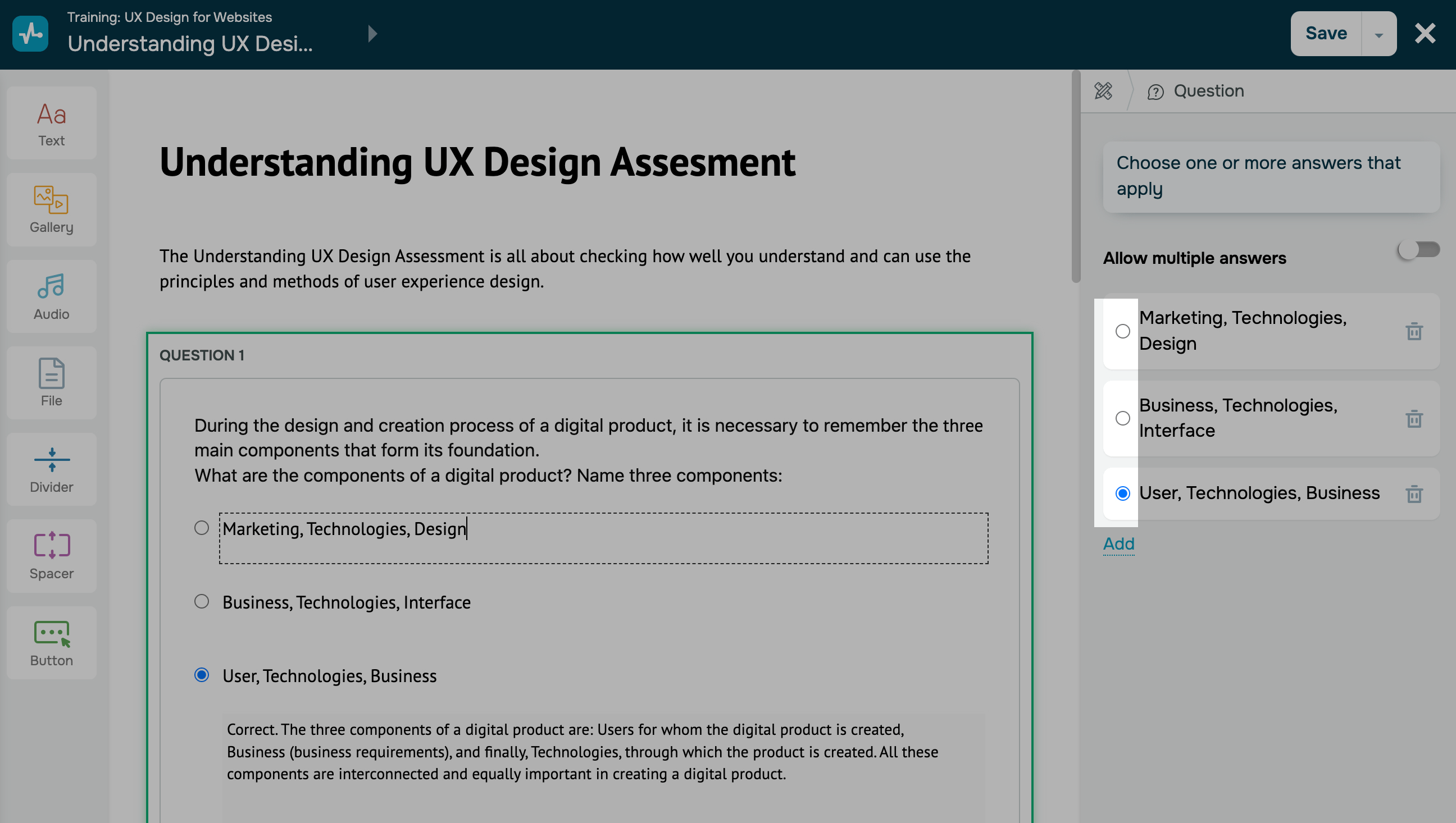
To select multiple answers, activate the Allow multiple answers option.
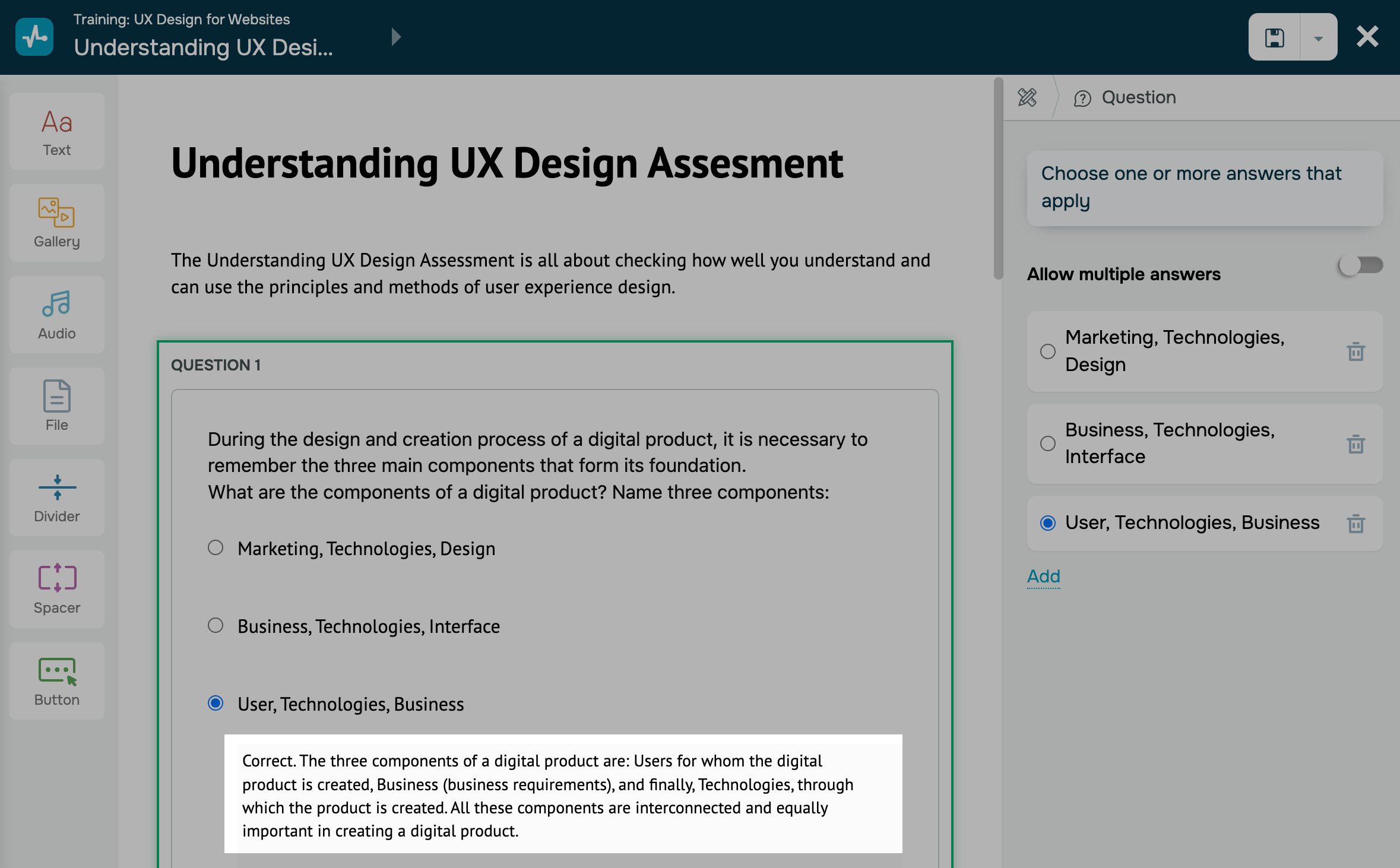
If you opt to show a correct answer hint in the settings, enter your text under the correct option.
Add a next question
To add another question, click on the + sign below the created question.
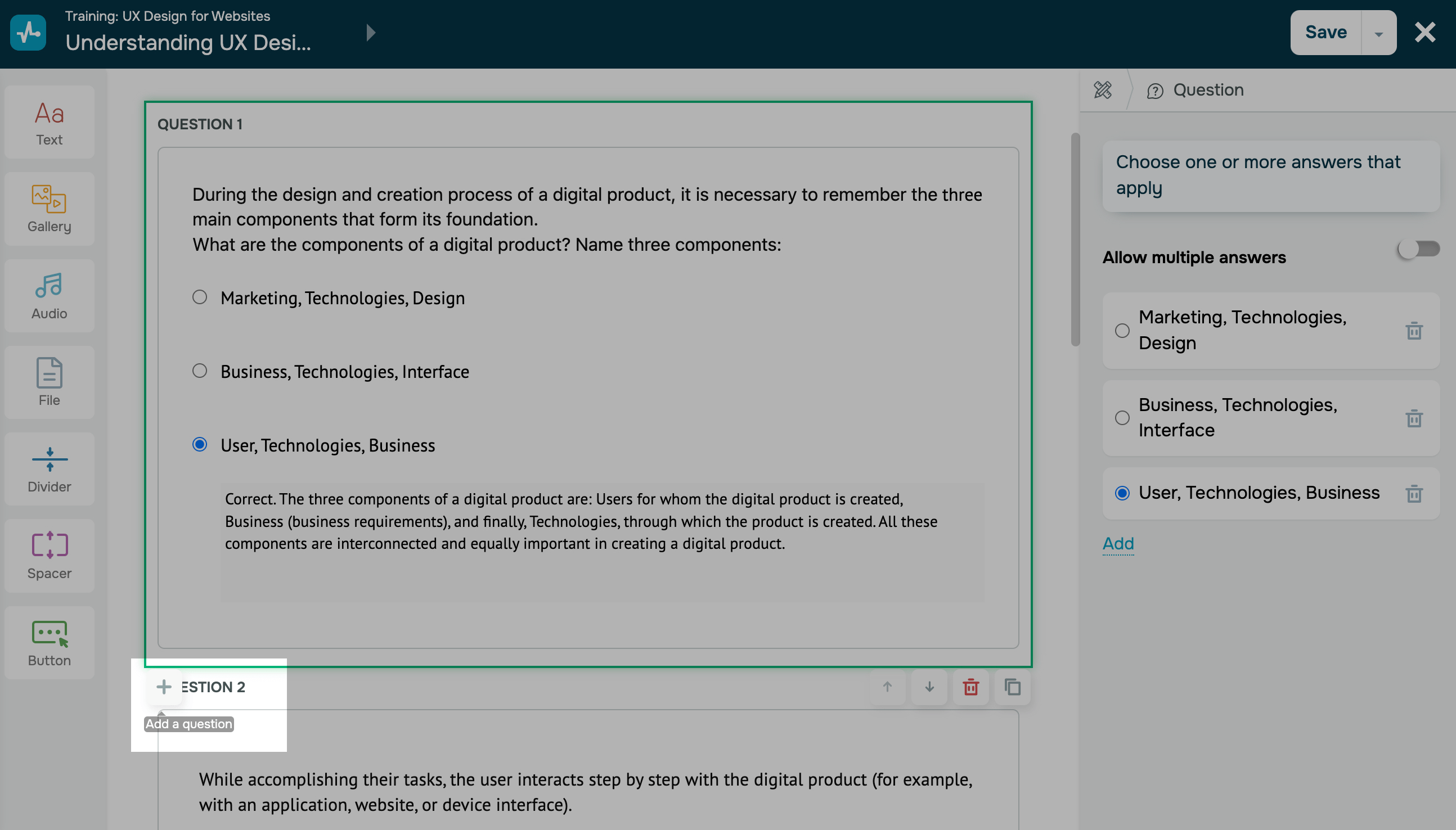
You can also copy your question if your questions are similar or if you have the same answer options.
To rearrange your questions, click on the Down or Up arrows.
Set your test
To open test settings, click your course name in the upper-left corner of the top toolbar. Next to the name of your test, click the three dots and select Test settings.
Read also: Set test options та Copy your test.
Save your test
Once you finish creating and configuring your test, click Save and exit in the upper right corner of the builder.
You can view test results and student progress in the Analytics tab and student cards.
 Last Updated: 03.01.2025





or