Import test questions from a file
Use import to add questions to a test from a CSV or XLSX file. Fill in a template and upload it once instead of creating each question by hand.
For example, a training manager can move a 50-question safety quiz from Excel to a course in one upload. The answer options and correct answers come with it.
Let's talk about how to fill in the template, upload your file, and import your questions.
Add a test
To import questions, you need a test in your course. Go to your course page, click the arrow next to the Add Lesson button, and select Add test. Enter a name for your test.
If your course already has a test, open it in the course builder. To learn more about creating tests manually, see Create a test.
Set up your file
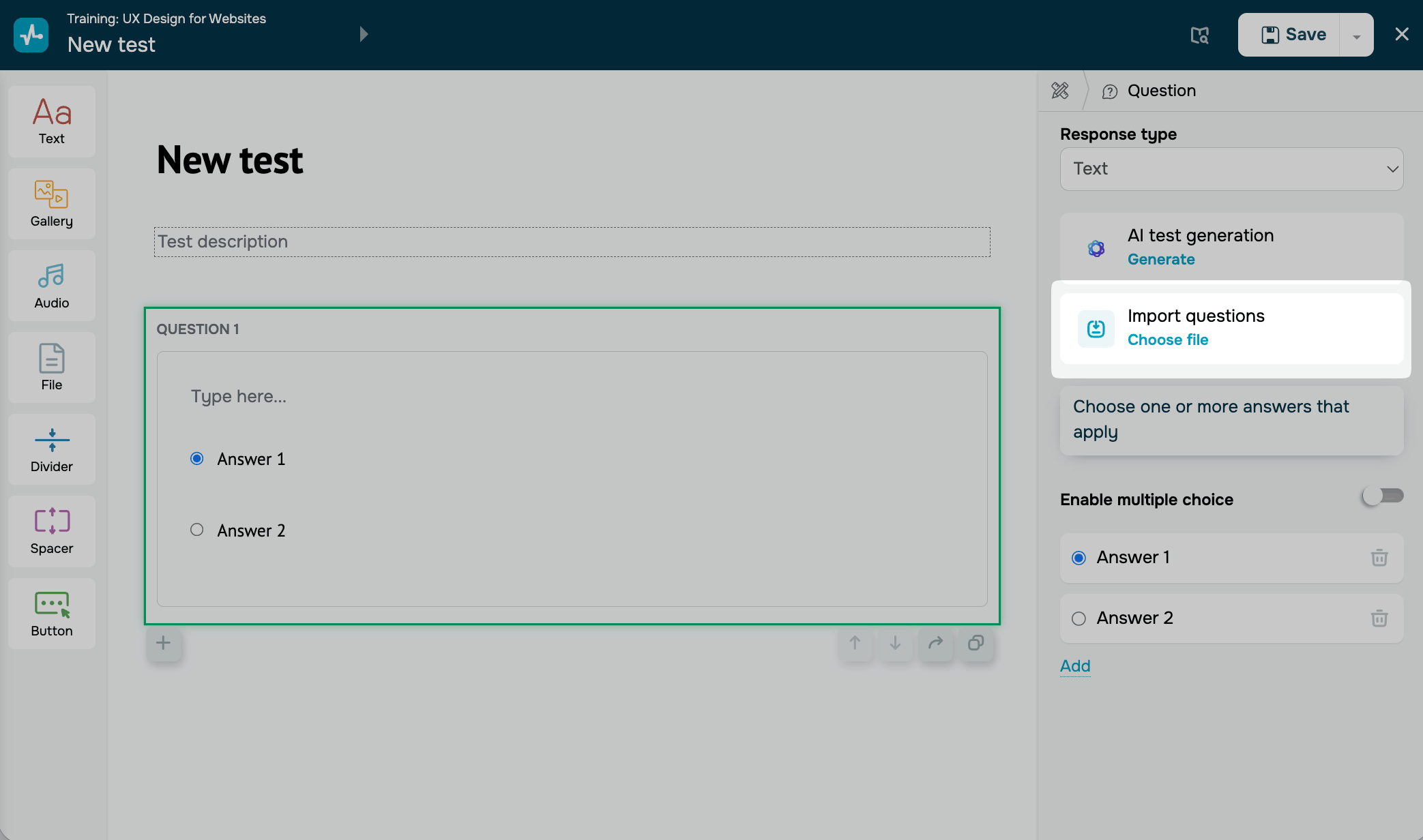
To ensure SendPulse imports your questions correctly, use the required file format. You can download a ready-made template by clicking Choose file in the Import questions card on the right.
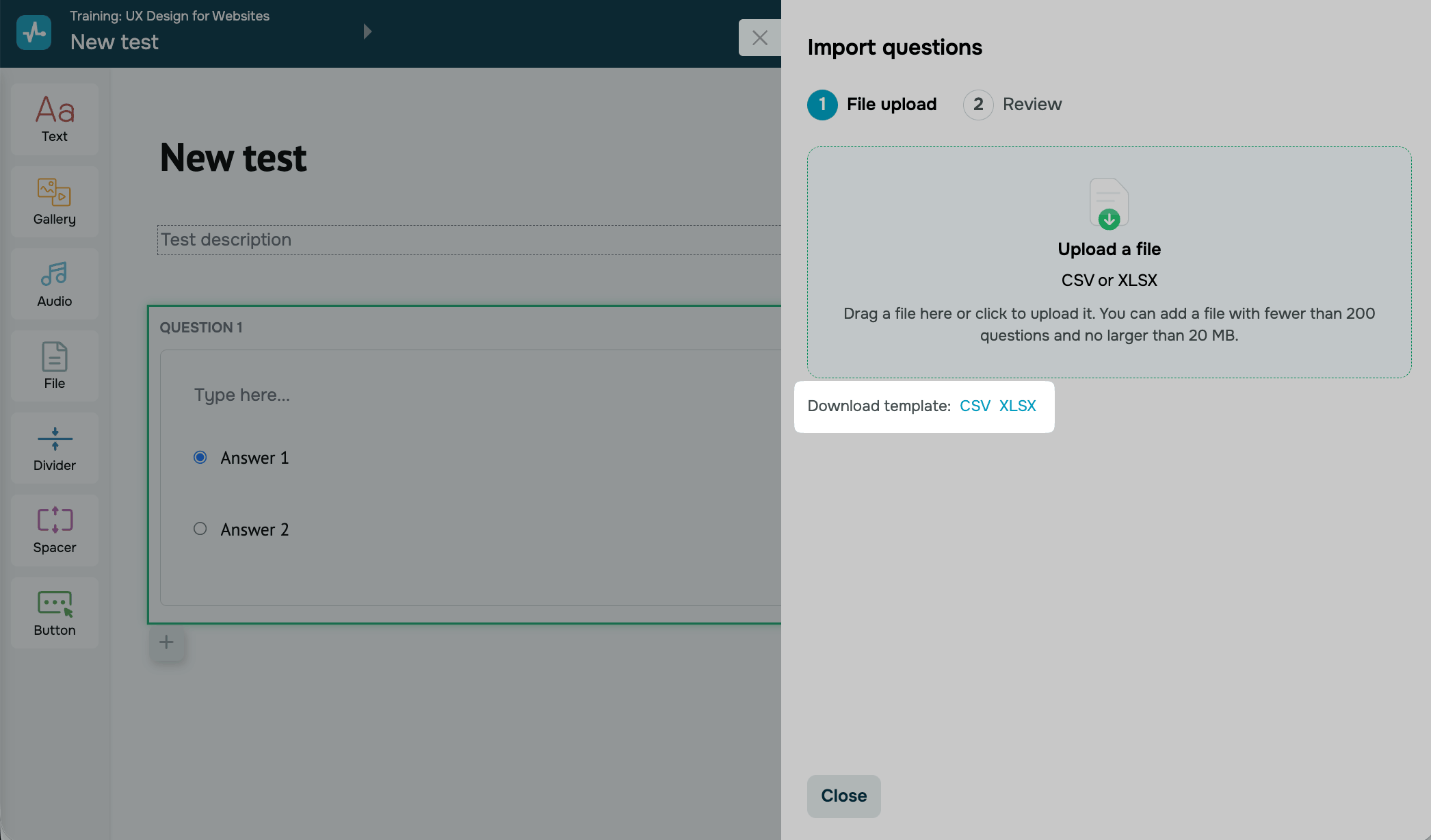
Download the template in CSV or XLSX format and open it.
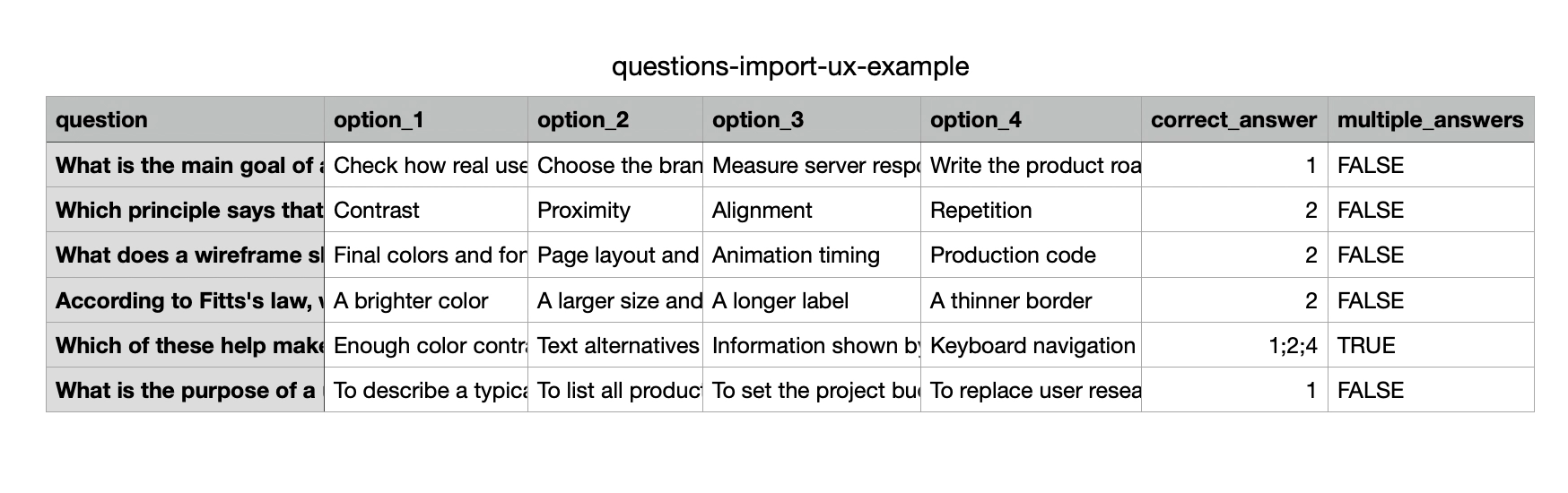
The template has a header row with column names and a sample question.
Copy your questions into the template, or organize your own file as follows:
- keep the first row for column headers, and name the columns exactly as in the template;
- add one question per row;
- put each answer option in its own column.
Add the following required fields to your file:
| question | The question text. |
| option_1–option_10 | Answer options, one per column. Each question needs at least two options. |
| correct_answer |
The number of the correct option. If a question has multiple correct options, list their numbers separated by semicolons, for example 1;3. |
| multiple_answers | Enter true to let students select multiple answers, or false to allow one. If you leave it empty, SendPulse sets false. |
Upload your file
Before you upload your file, make sure it meets the following requirements:
- the columns are named exactly as in the template;
- each question is in its own row;
- each question has text, at least two answer options, and a correct answer;
- there are no empty columns;
- the file format is CSV or XLSX;
- the file size is up to 20 MB;
- your test has up to 100 questions in total, including the ones you import.
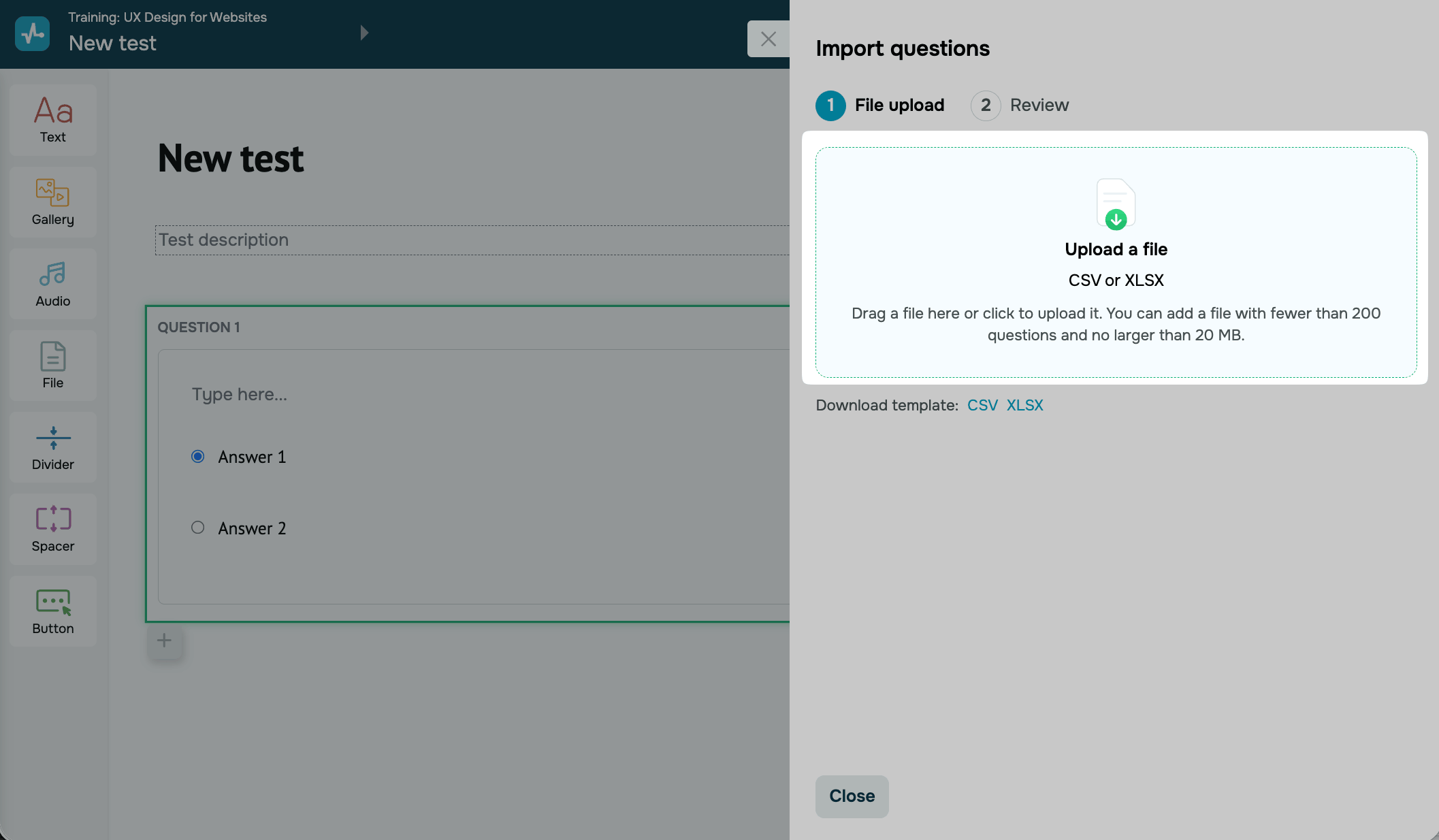
Once your file is ready, click on the area in the import window to upload it.
Review your questions and import them
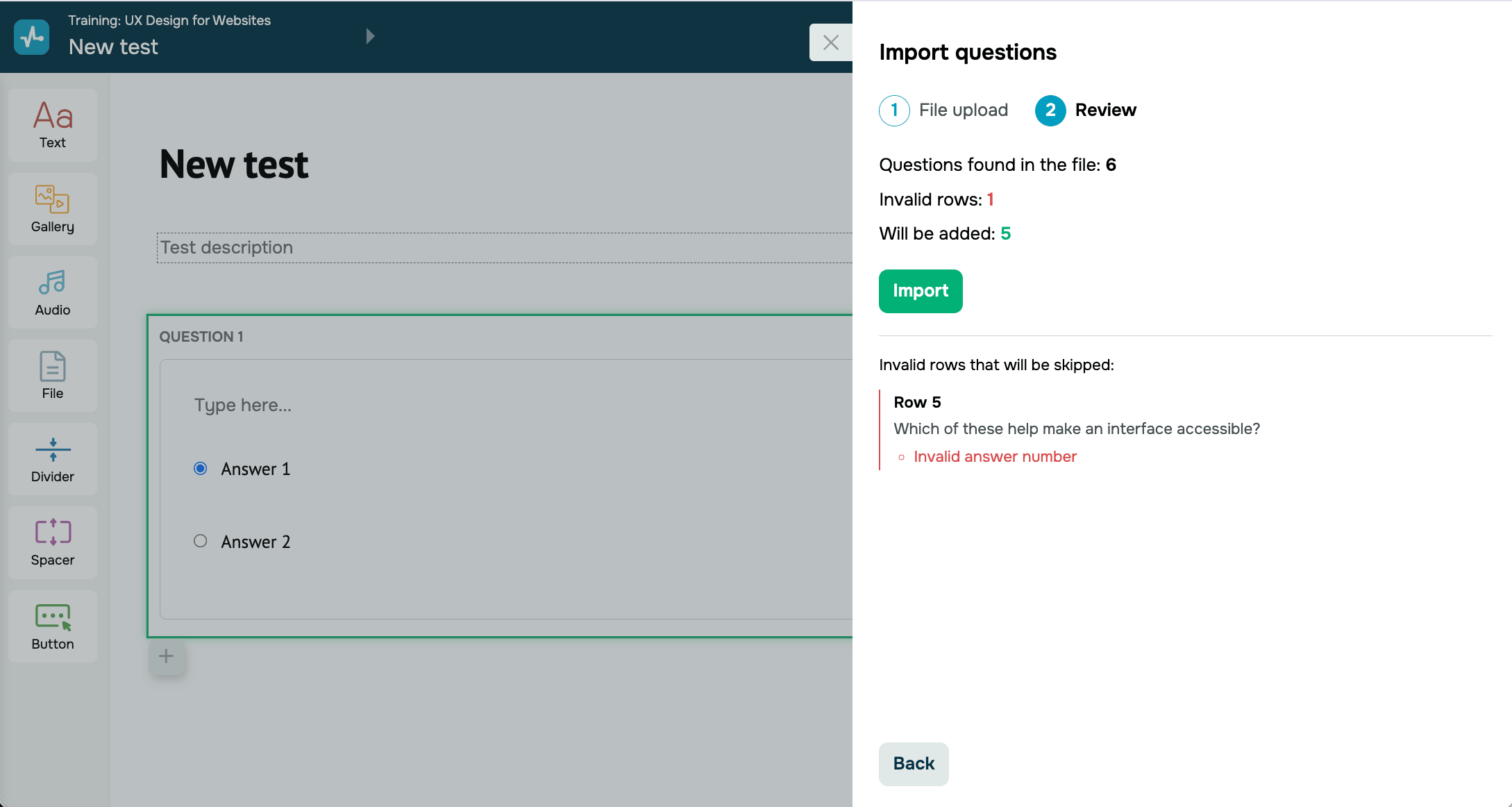
On the Review step, SendPulse shows the following counters:
| Questions found in the file | Amount of questions SendPulse read from your file. |
| Invalid rows | Amount of rows have errors and won't be imported. |
| Will be added | Amount of questions SendPulse will add to your test. |
If the file has invalid rows, the Invalid rows that will be skipped section lists them. Each item shows the row number, the question text, and the reason, such as Invalid answer number.
Troubleshoot import issues
If the import didn't go as expected, one of these is the likely cause:
| SendPulse doesn't accept your file | The file isn't a CSV or XLSX file, or it's larger than 20 MB, or it has more then 200 rows. Save your spreadsheet as CSV or XLSX, for example, by downloading it from Google Sheets. If the file is too large, split your questions into multiple files. |
| The Import button is inactive | Your file has no valid rows, or your test already has 100 questions. Fix the rows listed in the Invalid rows that will be skipped section, or delete some questions from your test. |
| Some rows were skipped | A row has no question text, fewer than two options, or you added a correct answer number in the wrong format. Fill in the missing values in your file, click Back, and upload the file again. |
| Your questions are in the wrong columns | Your spreadsheet app saved the CSV file with semicolons instead of commas, or the text contains commas outside quotation marks. Save the file as CSV UTF-8 (comma delimited) or upload an XLSX file instead. [verify with PM] |
| The question text shows unreadable characters | The CSV file isn't saved in UTF-8 encoding. Save the file as CSV UTF-8 or upload an XLSX file. |
| Your test has duplicate questions | You've imported the same file more than once. Import adds questions and doesn't replace the existing ones. Delete the duplicates in the course builder. Next time, import only the corrected rows. |
Check your imported questions
Your imported questions appear in the working area. You can edit the question text, add media to answer options, add hints, and change the correct answer.
Next, you can set your test options, such as passing score, number of attempts, and question order. After your students take the test, you can view their scores in test results.
 Last Updated: 23.10.2026





or