Set test options
Go to the course builder, сlick on the top left panel to expand the list of lessons, and select Test settings from the drop-down menu of the desired lesson.
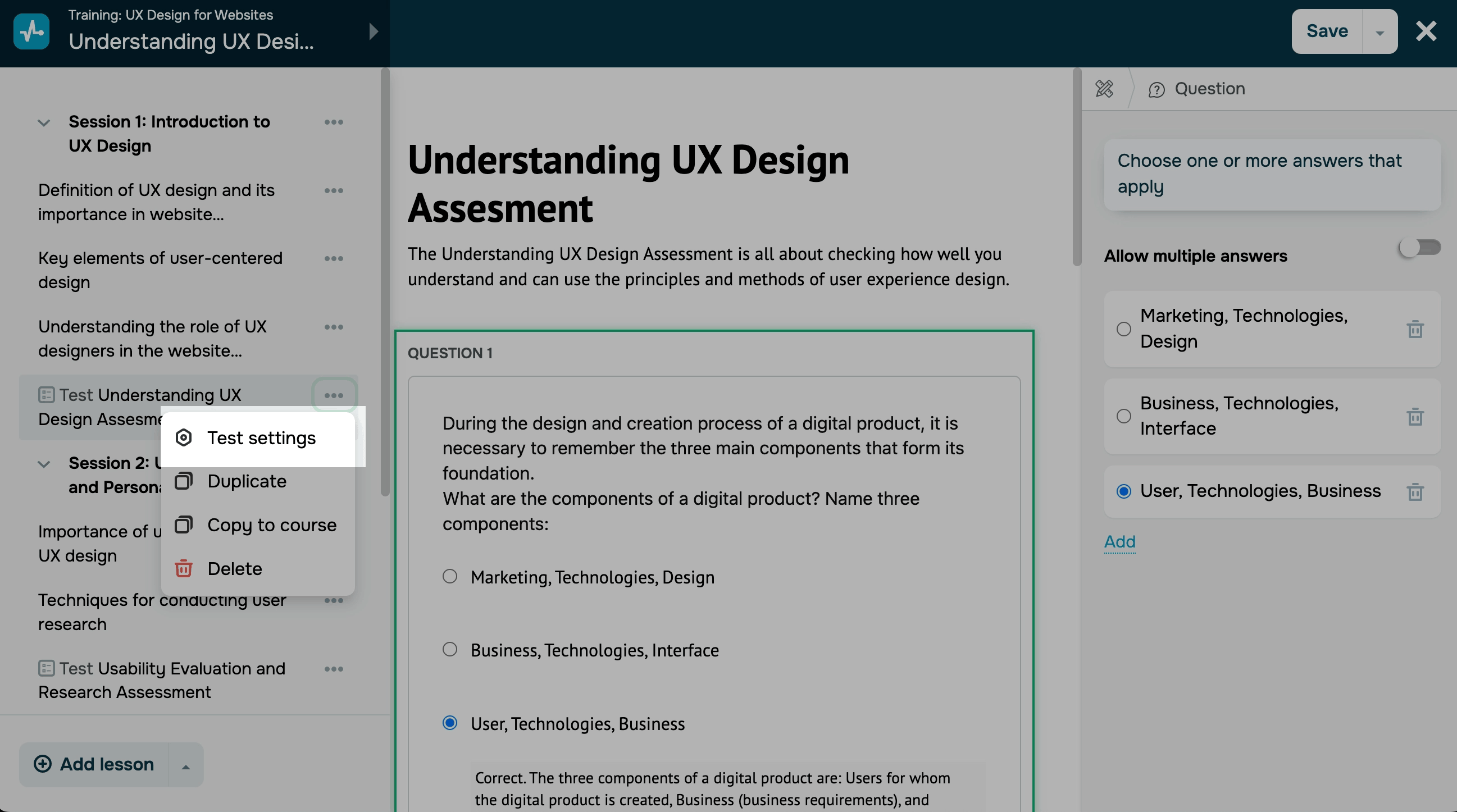
Test access options
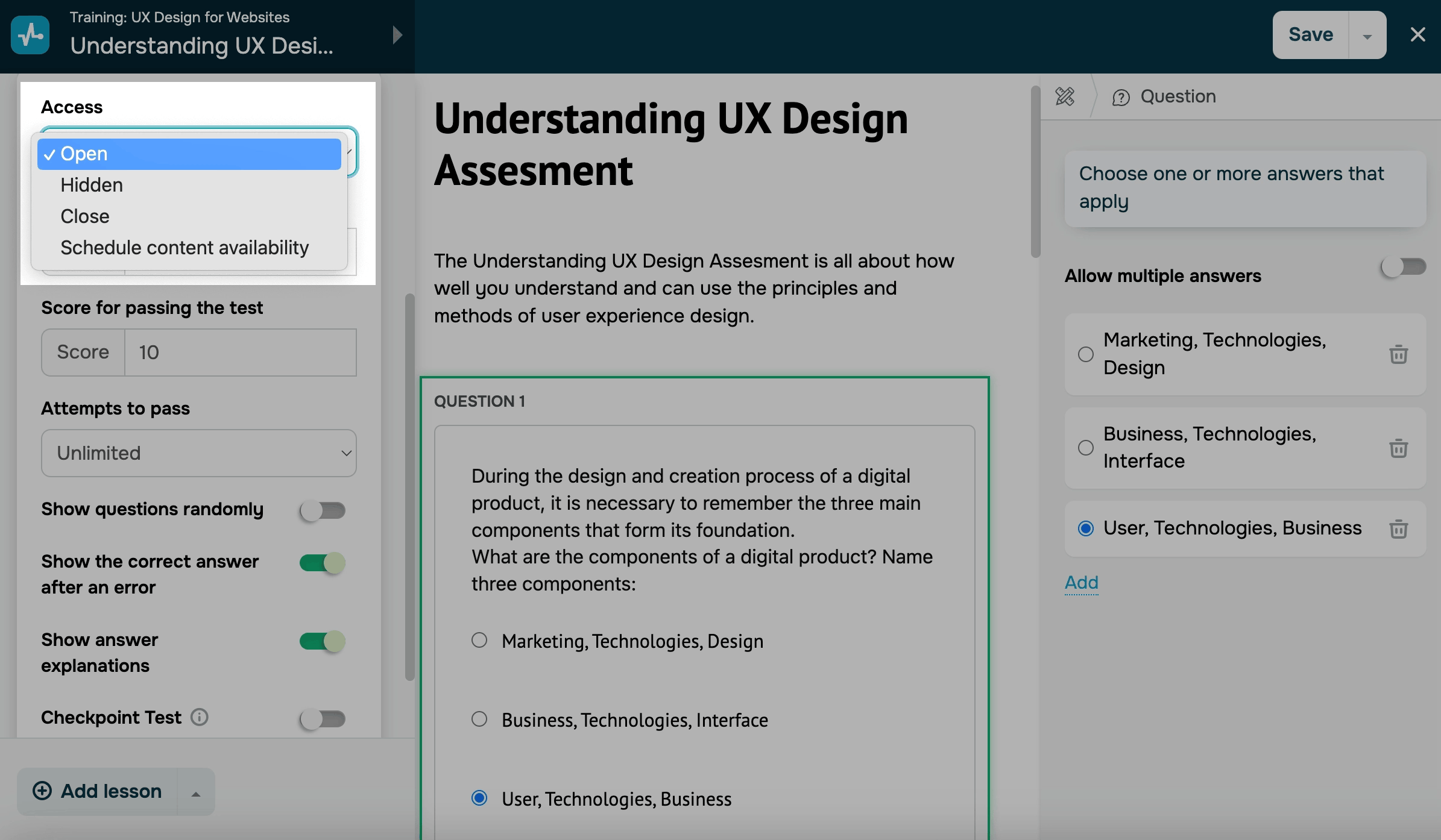
To update access settings and make a test visible to students, select a test availability option in the Access field:
| Open | If your course is non-sequential, students will be able to take the test right away. If it is sequential, they will need to reach the required course section to take the test. |
| Hidden | Students cannot take the test. However, instructors can view and edit it in the course builder and instructor accounts. The test will not impact students' course completion and scoring. |
| Close | Students cannot take the test. It will appear with the Close status in your course program, unlike tests with the Hidden status. |
| Schedule an opening | Students can take the test on a scheduled date and time. |
You can select from the following scheduling options:
| On a date |
The test will be available on a selected date and time. If you select a past date, your lesson or test will be marked as |
| In |
The test will be available after the previous test launch. This option is available only if you have scheduled your previous test. |
Test results affect students’ certification according to your selected course criteria (Complete all lessons and pass the tests and Pass the tests).
If you select one of these criteria in the settings, make sure that all your tests are available — otherwise, students won’t see them and won’t be able to complete your course.
Scheduled test opening will appear in the Calendar tab of instructor and student accounts with paid pricing plans.
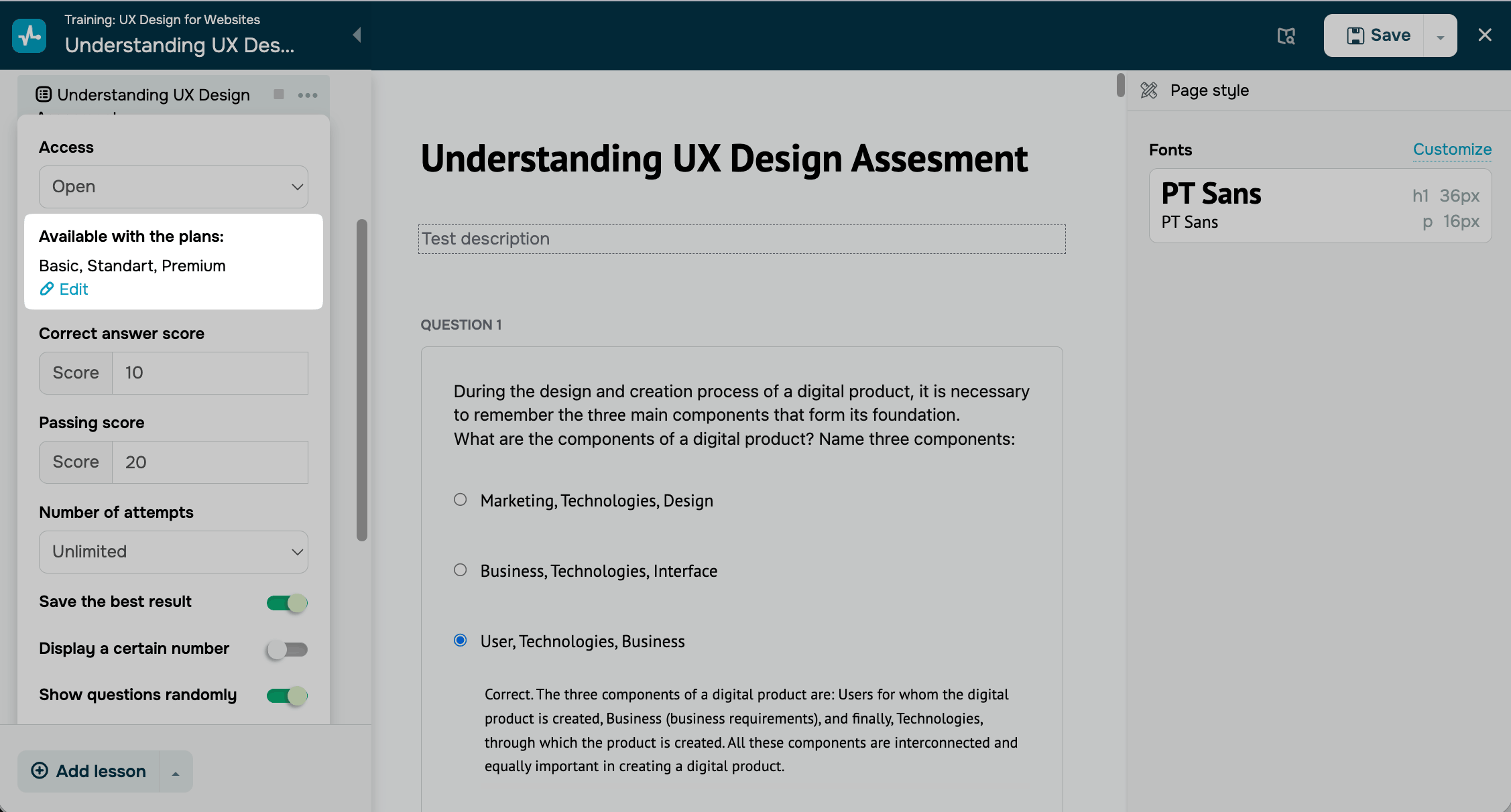
You can also limit access to your test to students enrolled in specific course pricing plans. To change the selected plans, click Edit and select the ones you need.
Scores and passing criteria
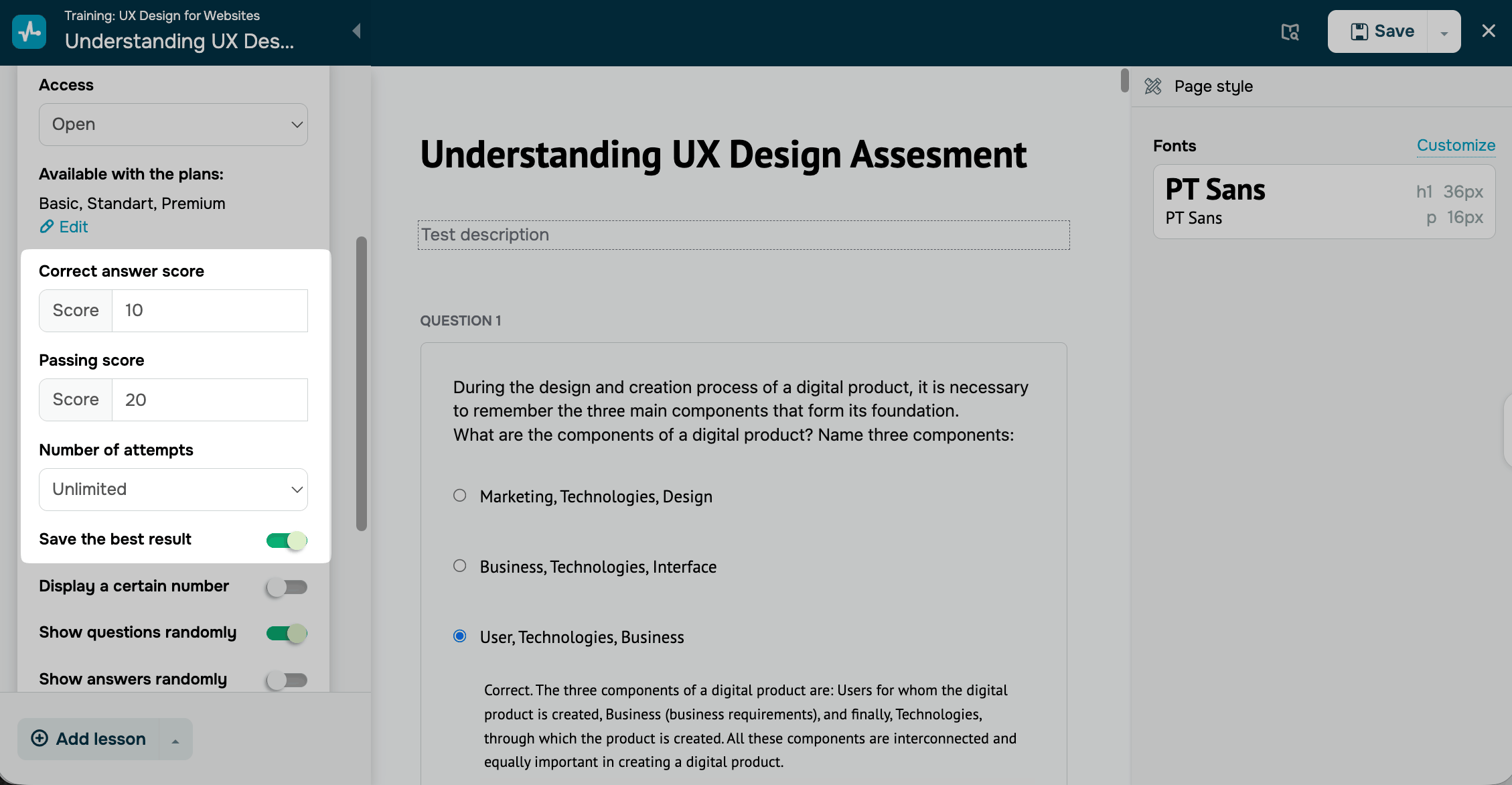
To set up passing criteria for students, you can select the following options:
| Score for the correct answer |
Specify the number of points attributed to students for selecting correct answers to test questions. If you set several correct answer options, and a user does not select all of them, no points will be attributed to them. |
| Score for passing the test |
Specify how many points a student must score to pass the test. Your indicated value should not exceed the maximum number of points for all test questions in total. Students will need to complete every test with the minimum passing score to receive a course certificate if you select the Complete all lessons and pass the tests or Pass the tests completion criteria in your course settings. |
| Attempts to pass | Select the number of attempts students can have to improve their test scores. You can set the number of attempts from 1 to Unlimited.If you set it to 1, students will have only one attempt to pass the test. |
| Save the best result |
By default, each new attempt replaces the previous test result, even if the new score is lower. Enable this option to keep the student's highest score instead. Suppose a student scores 80 points on the first attempt and 60 on the second. With this option, their test result stays at 80 points. Without it, the result drops to 60. If students retake the test and get fewer points than in their best attempt, they see both their new score and their best score on the test result screen. The option appears when you set Number of attempts to 2 or more, or to Unlimited. |
Questions and hints
To customize how questions are displayed to students while they take a test, use the following options:
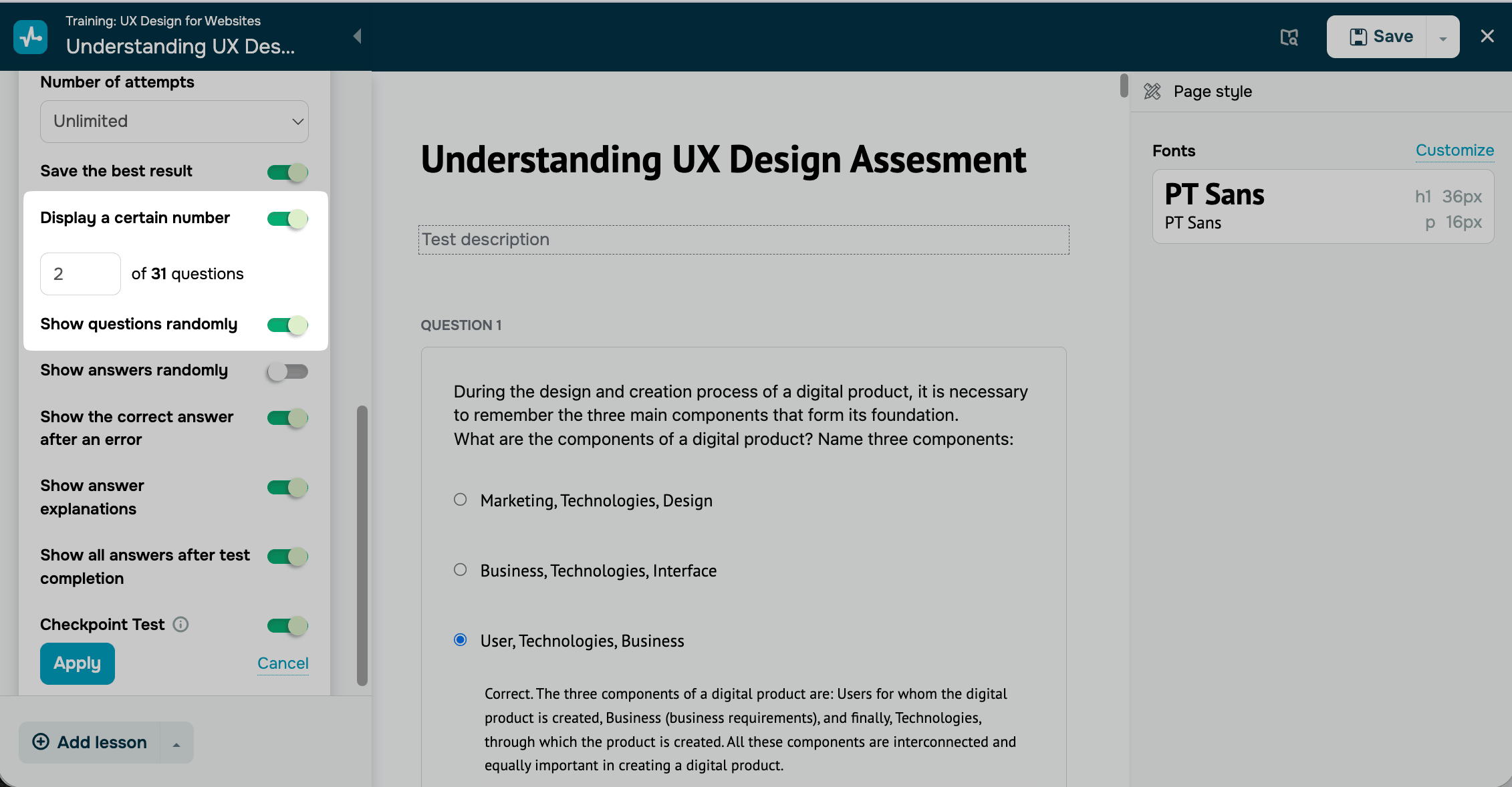
| Display a certain number | Enable this option to control how many questions students see in the test. Enter the number of questions in the field below. SendPulse calculates the maximum test score based on the questions shown. For example, to give each student their own set of 10 questions out of 30, also turn on the Show questions randomly toggle. |
| Show questions randomly | Enable this option to shuffle the test questions every time students take the test. |
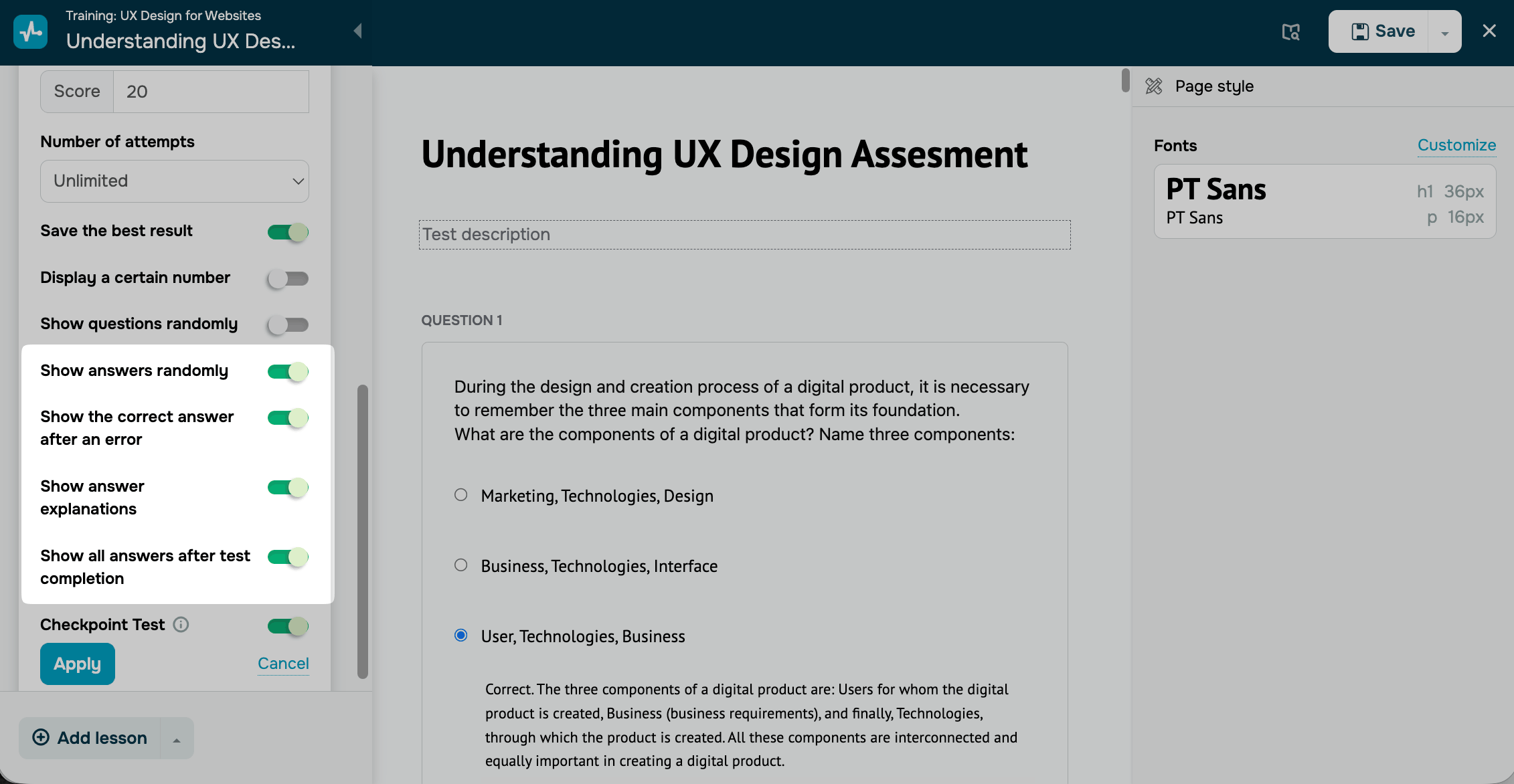
To customize how answers are displayed to students while they take a test, use the following options:
| Show answers randomly |
Enable this option to shuffle the response options under each question every time students take the test. You need to turn on Show all answers after test completion option to use this option. |
| Show the correct answer after an error | Enable this option to show students the correct answer during the test right after they select an incorrect one. |
To customize how answers are displayed to students on the Test result page, use the following options:
| Show answer explanations | Enable this option to show students an explanation of every correct answer right after they select an incorrect one. To use this option, you also need to turn on the Show the correct answer after an error toggle. Once you enable this option, you can add a correct option hint under each question. |
| Show all answers after test completion |
Enable this option to let students review their answers after they complete the test. After the last question, students see their score and the Your answers section on the test result screen. This section lists every question and the options they selected. |
Checkpoint test
To ensure that students cannot proceed in your course until they pass a test with the required score, you can turn on the Checkpoint Test toggle.
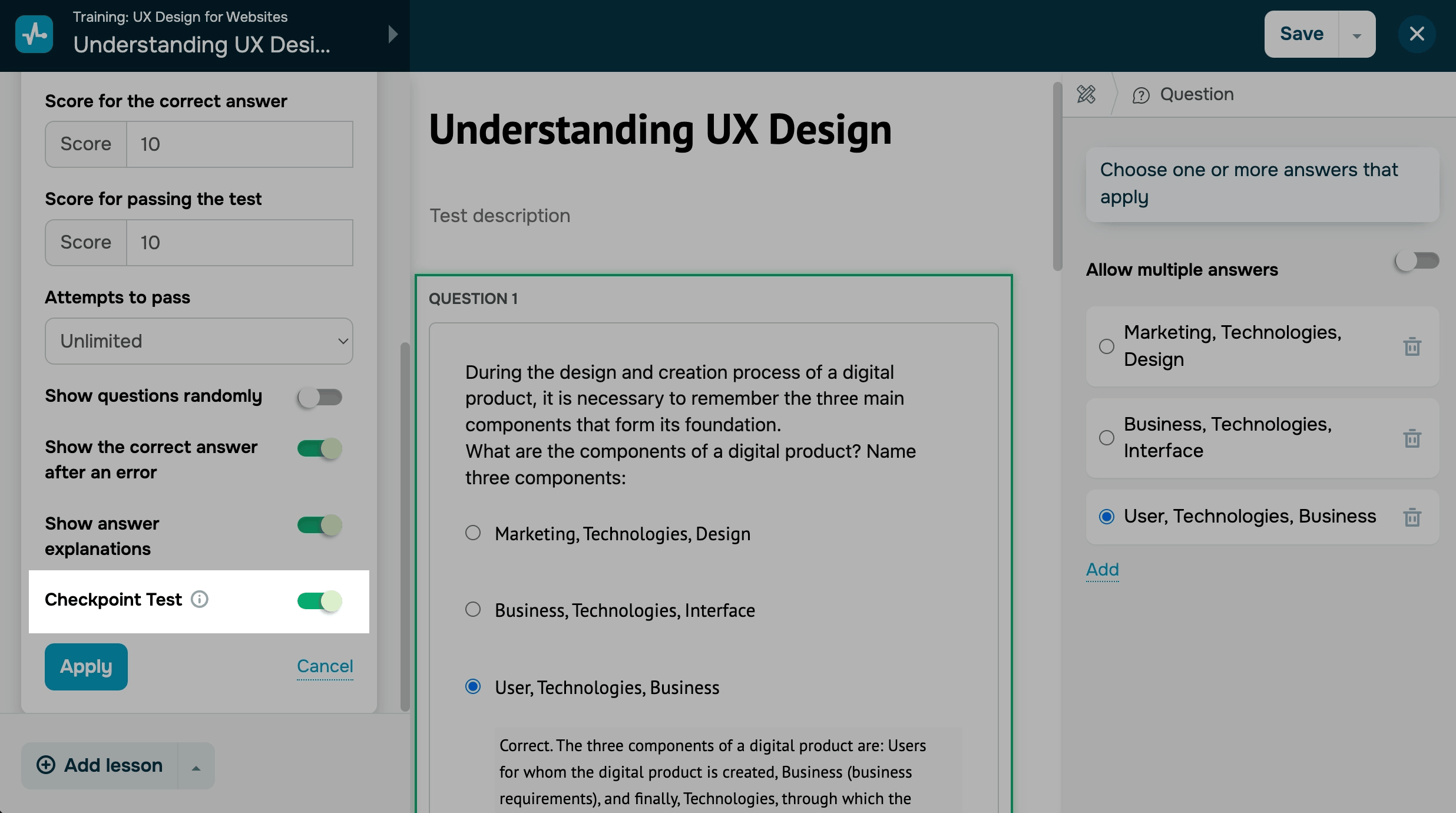
Once you configure all the required settings, click Apply.
 Last Updated: 17.12.2025





or